














































































Self-Host Bitwarden on a VPS:
Your Secure Password Vault
Self-Host Bitwarden on a VPS:
Your Secure Password Vault

Bitwarden Basics
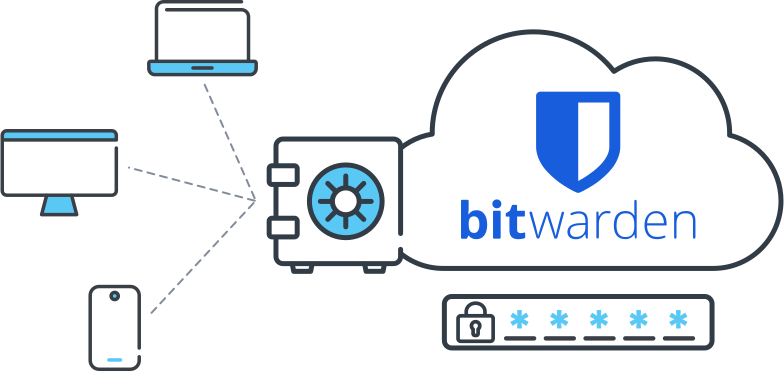
Bitwarden is an open-source password manager that securely stores and shares sensitive information using end-to-end encryption. It offers features like password generation, autofill, cross-platform sync, and two-factor authentication.
Self-hosting Bitwarden on a Contabo VPS gives you full control over your password vault. It's ideal for tech-savvy users, privacy-conscious individuals, and organizations that need to keep sensitive data in-house.
With this setup, you get the security of a cloud-based solution with the privacy of keeping your data on your own server. You can create a secure, personalized password management system that fits your exact needs.
Why Host Bitwarden on a Contabo VPS?

Full Control & Privacy

Cost-Effective Solution
Enhanced Security

Scalability

Customization

Reliable Performance







Deploy Your Perfect Image
With Custom Images, you can instantly deploy your .iso or .qcow2 image via web UI or API.










Getting Started with Bitwarden on Your Contabo VPS

Prepare Your Server
Choose your VPS, log in, and update your system. Install Docker and Docker Compose, essential for running Bitwarden.
Configure Bitwarden
Download the Bitwarden installation script and configure it with your domain name and other essential settings.
Set Up SSL Encryption
Secure your instance with SSL/TLS encryption. SSL certificates are available as an Add-On or from your chosen provider.
Launch Bitwarden
Start your Bitwarden container using Docker Compose and access your new password vault through your web browser.
Finalize Setup
Create your admin account, set up two-factor authentication, and start adding your passwords to your secure vault.
Managing Your Self-Hosted Bitwarden Instance
Security Best Practices
- Keep your Bitwarden instance updated with the latest security patches.
- Enable two-factor authentication on admin and user accounts.
- Configuring strong network firewalls to protect your server.
- Monitor access logs to detect any suspicious activity.

Maintenance and Updates
- Back up your data carefully before beginning any update.
- Use the Bitwarden update script to download and install the latest version.
- Check for any post-update tasks in the release notes.
- Monitor your resource usage and upgrade your server if needed.

Backup and Recovery
- Schedule regular backups of your Bitwarden database.
- Store your backups in a secure, off-site location to prevent unwanted access.
- Test your backup restoration process regularly to ensure it works as needed.
- Consider keeping multiple versions of your backups.

Troubleshooting Common Issues
- Check your server logs for error messages to identify the problem.
- Ensure all Bitwarden services are running correctly.
- Verify your database connection is stable and secure.
- Consult the Bitwarden community forums or documentation.
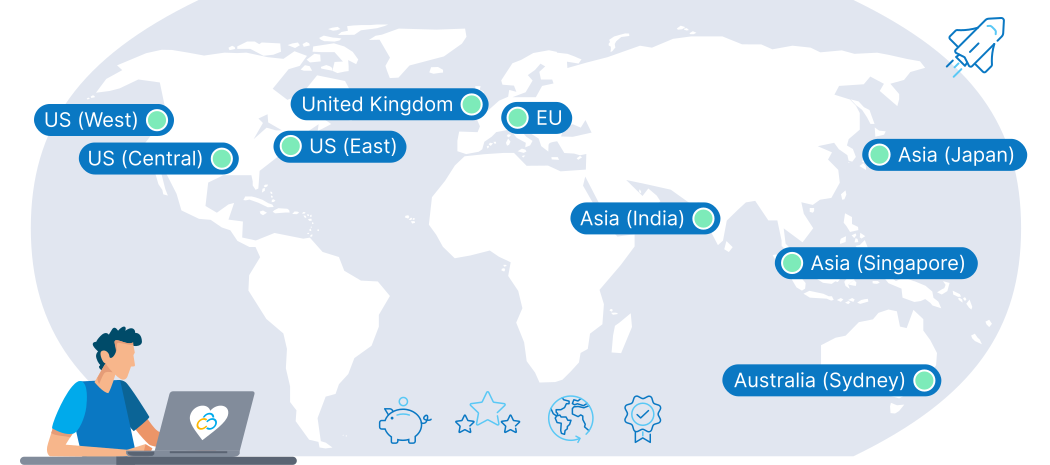
9 Regions, 11 Locations, Global Availability
Trusted by Thousands Worldwide
See Why Customers Love Contabo