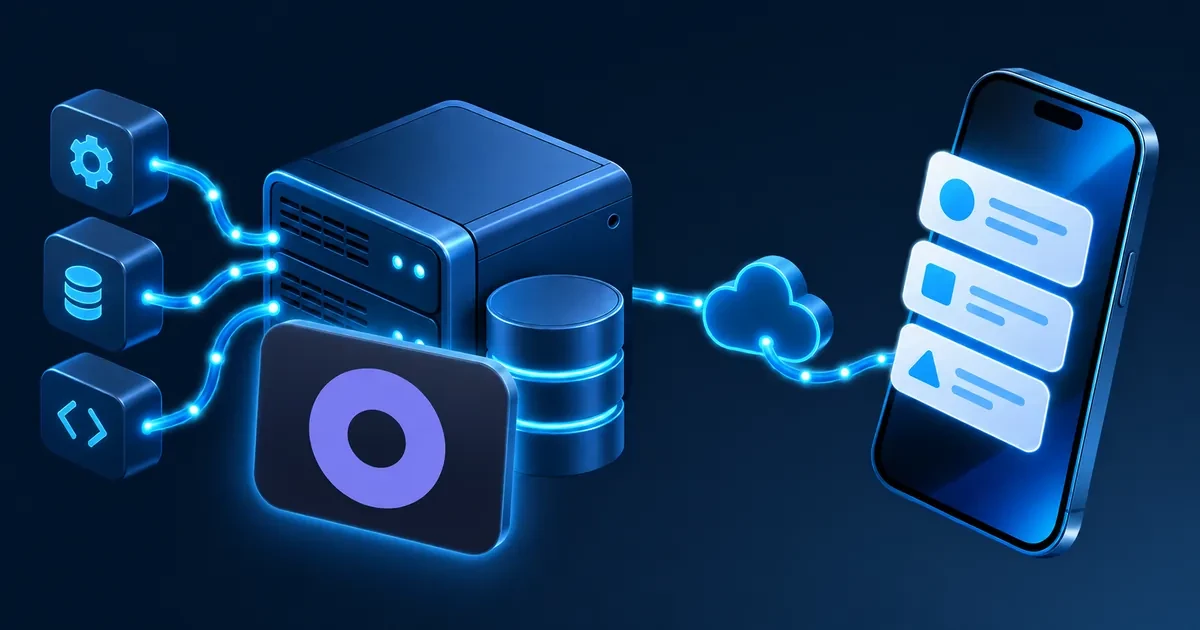
In short. Boop is a self-hosted notification inbox that pushes events from your apps to your iPhone. It runs as one Go binary with a SQLite database, deploys with docker compose up -d --build, and listens on port 8080. Pushes go straight from your server to Apple’s APNs with no hosted relay. You need an Apple Developer account to build and sign the iOS app yourself.
Most error trackers want you to sign up, ship your stack traces to their cloud, and start paying per seat once the free tier runs out. Boop takes the other route. A self-hosted notification inbox is a small server you run yourself that accepts events from your applications and forwards them to your phone as push notifications, with no third party in the path.
Boop is MIT-licensed, written in Go, and keeps everything in a single SQLite file. A practical example: your nightly pg_dump finishes, a one-line curl posts the result to Boop, and your phone buzzes with “Backup complete” a second later. This guide covers deploying Boop on a VPS, connecting it to Apple push notifications, and sending your first event.
What you need before you start
The server side is undemanding: a Docker host with a public hostname. The Apple side is where most of your setup time goes, because you build and sign the iOS app yourself.
- A Linux server with Docker Engine and the Docker Compose plugin. The Boop server is small. The project author reports it using around 8 MB of memory on his own machine.
- A domain or subdomain pointing at that server, behind HTTPS. Your phone fetches full event detail from the server directly, so it has to be reachable from outside your network.
- An Apple Developer account, a Mac with Xcode, and an iPhone running iOS 26. The Boop iOS app is open source and you build and sign it yourself.
- Root or
sudoaccess over SSH, plus about 30 minutes.
Step 1: Get Boop running with Docker
Boop comes up on port 8080 from a clone and one compose command. The step people skip is the data directory:
git clone https://github.com/chrisgreg/boop && cd boop
cp .env.example .env
mkdir -p data && chown 1000:1000 data
docker compose up -d --build
The chown 1000:1000 line matters on Linux hosts. The image runs as uid 1000, and a bind-mounted directory created by root leaves SQLite unable to write /data/boop.db.
Verify the server is up:
curl http://localhost:8080/healthA healthy server returns {"status":"ok"}. Open http://localhost:8080 and a setup wizard walks you through the server check, APNs, pairing, your first project, and a test notification. APNs credentials are optional at this stage. Without them, events are stored and shown in the web UI and pushes are skipped, which is a reasonable way to test your integrations before you touch the Apple Developer portal.
If you would rather not run Docker, there is an alternative path: every release ships a static, dependency-free binary for Linux on amd64 and arm64 with the web UI embedded. Set BOOP_DATABASE_PATH to somewhere writable, since it defaults to /data/boop.db:
BOOP_DATABASE_PATH=./boop.db ./boopStep 2: Put Boop behind HTTPS and lock the admin UI
Set BOOP_ADMIN_USER and BOOP_ADMIN_PASSWORD before the server is reachable from the internet. Leave both unset and every admin endpoint is open to anyone who finds the host. That is a deliberate design choice for people running Boop behind Tailscale or a VPN, and a bad default to inherit by accident on a public IP.
In .env:
BOOP_BASE_URL=https://boop.example.com
BOOP_ADMIN_USER=you
BOOP_ADMIN_PASSWORD=a-long-password-here
BOOP_BASE_URL matters more than it looks. It is the URL baked into the pairing QR code, so if it still points at localhost your phone scans a code aimed at itself.
Put a reverse proxy in front with a real certificate. Nginx and Caddy both work. The server only needs traffic forwarded to port 8080. Restart to pick up the changes:
docker compose up -dAdmin sessions last 30 days and live in memory, so a server restart signs you out. Project and device credentials are refused on admin endpoints, so a leaked API key from one of your apps never grants admin rights.
Step 3: Set up Apple push notifications
APNs needs four things from the Apple Developer portal: your Team ID, the Key ID of an APNs authentication key, the bundle ID of your Boop build, and the .p8 key file itself.
- Create an App identifier for your Boop iOS build and enable Push Notifications.
- Under Keys, create an APNs authentication key and download the
.p8file. Apple lets you download it once. - Note the Key ID and your Team ID from the top right of the portal.
On the server, put the key at ./secrets/apns.p8, uncomment the secrets volume in docker-compose.yml, and fill in .env:
APNS_TEAM_ID=XXXXXXXXXX
APNS_KEY_ID=XXXXXXXXXX
APNS_BUNDLE_ID=com.example.boop
APNS_PRIVATE_KEY_PATH=/run/secrets/apns.p8
APNS_ENVIRONMENT=production
Restart with docker compose up -d and the settings page should report APNs as configured. If it does not, read the troubleshooting section below before you start regenerating keys.
Step 4: Build the iOS app and pair your phone
The Boop iOS app is not on the App Store, so you build and sign it in Xcode yourself. Open ios/Boop.xcodeproj, set your development team and the same bundle ID you put in APNS_BUNDLE_ID, and install the build on your phone. The app targets iOS 26 and ships with a notification service extension.
Pairing uses a one-time QR code. In the web UI go to Devices, choose Pair iPhone, and scan the code with the app. The payload is small:
{"version": 1, "server": "https://boop.example.com", "token": "pair_..."}The token is valid for 10 minutes, works once, and can be revoked. The app exchanges it for a device credential, registers for APNs, and posts its token back to the server. Verify the whole chain from Settings, then Send test notification. If the phone buzzes, every part of the path is working.
Step 5: Send your first event
One POST to /api/v1/events with a project API key is the entire integration. Create a project in the web UI and copy its key, which is shown once:
curl https://boop.example.com/api/v1/events \
  -H "Authorization: Bearer boop_proj_..." \
  -H "Content-Type: application/json" \
  -d '{"title": "Deploy complete", "level": "success"}'
A successful call returns {id, created_at}. Levels are info, success, warning, error, and critical.
Richer events carry structured data. Boop renders recognized sections such as exception, stacktrace, tags, context and breadcrumbs properly, and keeps anything else as-is after redaction:
curl https://boop.example.com/api/v1/events \
  -H "Authorization: Bearer boop_proj_..." \
  -H "Content-Type: application/json" \
  -d '{
    "title": "KeyError", "body": "key :can_palette? not found",
    "level": "error", "source": "error_tracker", "fingerprint": "uini-keyerror",
    "data": {
      "exception": {"type": "KeyError", "message": "key :can_palette? not found"},
      "tags": {"environment": "production"}
    }
  }'
Wrapping that in a shell function makes it usable from any cron job or deploy script:
boop() { curl -fsS "$BOOP_URL/api/v1/events" -H "Authorization: Bearer $BOOP_API_KEY" \
  -H "Content-Type: application/json" -d "{\"title\": \"$1\", \"body\": \"${2:-}\", \"level\": \"${3:-info}\"}"; }

pg_dump mydb > backup.sql && boop "Backup complete" "" success || boop "Backup failed" "$(tail -1 backup.log)" error
Client libraries exist for Elixir and Node.js, with a community-maintained Laravel package. Boop also speaks the Sentry ingest protocol, so a server-side Sentry SDK can report to it by pointing SENTRY_DSN at your Boop host with a project API key as the public key. Keep that DSN server-side. Unlike a real Sentry public key, a Boop project key can write events.
Configuration to set on day one
Four settings save you trouble later: retention, redaction, actions, and silences.
Retention. BOOP_RETENTION_DAYS defaults to 90. Set it to 0 to keep events forever. Setting the environment variable overrides whatever is saved in the web UI on every start, so leave it unset if you want to manage retention from Settings.
Redaction. Values under keys such as password, secret, token, api_key, authorization and private_key are replaced with [REDACTED] before storage. Matching is case-insensitive and treats - and _ alike. Add your own keys in Settings.
Actions. An event can carry up to three buttons that open a URL, shown on the notification itself and in the event detail. Labels are 40 characters or fewer and URLs must be absolute. An “Open in Stripe” button on a payment event turns a notification into one tap instead of four.
Silences. A known-flaky job does not need to wake you. Click Silence events like this on any event and match on fingerprint, title, or source, for one project or all of them. Matching events still land in the inbox marked as silenced, and no push is sent.
Grouping works alongside silences. Send the same fingerprint for the same problem and the inbox collapses it into one row reading KeyError ×47 · First seen 09:31 · Last seen 10:42. Every occurrence is still stored and still pushed, so grouping tidies the display rather than the alerting.
Where to run it
A small VPS is the right home for Boop. The workload is a single Go process writing to a SQLite file, plus occasional outbound TLS connections to Apple, so CPU and memory barely register. What actually matters is a stable public address and uptime, because your phone fetches full event detail from the server every time you open a notification.
Core VPS is the cost-optimized line at Contabo, built for steady, low-demand workloads of exactly this shape. Cloud VPS 4 carries 8 GB of RAM, which is far more than Boop needs and leaves headroom for your reverse proxy and whatever else you self-host on the same box.
Back up data/boop.db with a consistent snapshot rather than a plain file copy:
sqlite3 data/boop.db ".backup backup.db"Keep the .p8 key backed up separately from the database. Losing it means generating a new APNs key and pairing your devices again.
Troubleshooting: four failures you are likely to hit
Most Boop problems are configuration rather than bugs, and four of them account for the bulk of the reports.
APNs still shows as unconfigured after a deploy. Cause: APNS_PRIVATE_KEY_PATH has a value but no file exists at that path, which happens when you copy .env.example wholesale and also set the inline APNS_PRIVATE_KEY. The path always overrides the inline key. Fix: use one or the other and leave the unused variable completely unset.
SQLite cannot write /data/boop.db. Cause: the bind-mounted ./data directory was created root-owned while the image runs as uid 1000. Fix: run chown 1000:1000 data, or switch to a named volume. On Dokploy, use docker-compose.dokploy.yml, which does that for you and drops the published port so the server is only reachable through your HTTPS proxy.
The pairing QR scans but the phone cannot connect. Cause: BOOP_BASE_URL is unset or points at localhost, so the QR payload sends the phone to an address that does not exist from its network. Fix: set BOOP_BASE_URL to the public HTTPS URL and generate a fresh pairing token.
No pushes arrive from an Xcode debug build. Cause: APNS_ENVIRONMENT defaults to production, and a debug build registers against the sandbox gateway. Fix: set APNS_ENVIRONMENT=sandbox while developing, then switch back before you ship.
FAQ
Does Boop work on Android?
No. Boop pushes through Apple’s APNs and the only client is an open-source iOS app you build yourself, so an iPhone running iOS 26 is required today. A native desktop client is listed as planned in the project repository. Events are always visible in the embedded web UI regardless of platform, so Android users can read the inbox in a browser without push notifications.
Do I need a paid Apple Developer account?
Yes, in practice. Creating an APNs authentication key means using the Keys section of Certificates, Identifiers and Profiles, which needs an Account Holder or Admin role on an enrolled team. A free provisioning profile also expires after seven days, so you would rebuild and reinstall the app every week. Budget for the annual membership if Boop is going to be a permanent fixture.
How much server does Boop need?
Very little. The project author reports the server using around 8 MB of memory on his own machine, and the database is a single SQLite file whose size tracks your event volume and retention window. The practical floor is whatever your reverse proxy and operating system need. Any entry-level VPS with 1 GB of RAM or more is comfortable, and the CPU is effectively idle between events.
Can I use Boop with an existing Sentry SDK?
Yes. Boop implements the Sentry SDK envelope endpoint, so any current server-side Sentry SDK reports to it by pointing SENTRY_DSN at your Boop host with a project API key as the public key. Exceptions become Boop events with the type and value as the title, and Sentry grouping fingerprints are preserved. Transactions and sessions are accepted and ignored.
What happens to events while my phone is offline?
Nothing is lost. Every event is stored in SQLite on your server whether or not the push is delivered, and the inbox in the app and the web UI shows the full history within your retention window. The push itself carries only a title, body and event ID; the app fetches the detail from your server when you open it.
Can an AI agent read my Boop inbox?
Yes. Boop exposes a read-only Model Context Protocol endpoint at /mcp over Streamable HTTP, with tools for listing projects, searching events, and fetching a full event or every occurrence of a fingerprint. Set BOOP_MCP_TOKEN to at least 16 characters and use it as a bearer token. There is no model inside Boop; it serves structured context only.