

ERR_SSL_PROTOCOL_ERROR means your browser and the website could not complete the TLS/SSL handshake, so the secure HTTPS connection was never established. Common causes are a wrong device clock, stale SSL or browser cache, antivirus or VPN interference, or a misconfigured certificate or TLS setup on the server.
Quick fixes (top 3):
- Set date, time and time zone to automatic, then reload.
- Clear SSL state and browser cache (Windows: Internet Options > Content > Clear SSL state).
- Turn off VPN, proxy and antivirus HTTPS scanning and retry. Still failing on only one site? The server is probably misconfigured: see the site-owner section.
If Chrome says “This site can’t provide a secure connection” with ERR_SSL_PROTOCOL_ERROR, the handshake between your browser and the server failed. Below: the causes, nine fixes for visitors, and what site owners should check on the server (TLS versions, certificates, nginx, Apache).
What is ERR_SSL_PROTOCOL_ERROR?
ERR_SSL_PROTOCOL_ERROR means your browser and the server couldn’t agree on how to complete a secure TLS/SSL handshake — the connection was reset before HTTPS encryption could be established. It usually points to a misconfigured or expired SSL certificate on the server, a browser or OS with an outdated TLS implementation, or a local network device (firewall, antivirus, proxy) interfering with the handshake.
Why does the browser care so much about an SSL/TLS handshake? Because once it’s finished, all data transmitted between you and the website is encrypted. Without encryption, your information travels like an open postcard that any curious person could read. This handshake ensures nobody eavesdrops on you or tampers with your data.
Sometimes, the error is triggered by issues on your end, such as a wrong date or time on your device. Think of it like showing a passport that’s expired. Even if you’re who you say you are, the official sees a date problem and blocks you at the gate. On the other hand, it could be the website’s fault. Perhaps the site owner forgot to renew the certificate or used a certificate that doesn’t match the site’s domain. Browsers are strict – any mismatch and they’ll wave the red flag.
Another angle is older software. If your browser or operating system is too old, it may not understand the latest encryption protocols. It’s like trying to play a Blu-ray disc in a VHS player. No matter how many times you hit play, it won’t work.
In short, ERR_SSL_PROTOCOL_ERROR is your system’s way of shouting, “Stop – something’s not right with this secure connection!” It protects you from connecting to a risky site where your data could be exposed.
What is a Secure Connection?
A secure connection starts with the TLS/SSL handshake: browser and server agree on a protocol version, cipher and keys, and the browser checks the server’s certificate. If any step fails, you get ERR_SSL_PROTOCOL_ERROR. “SSL” is still used as a catch-all name, but modern sites use TLS 1.2 or 1.3.

If you’re experiencing connection issues with a specific site, see the FAQ section. Or if you want to learn everything there is to know about SSL certificates, check out our Ultimate Guide to SSL.
Reasons behind ERR_SSL_PROTOCOL_ERROR
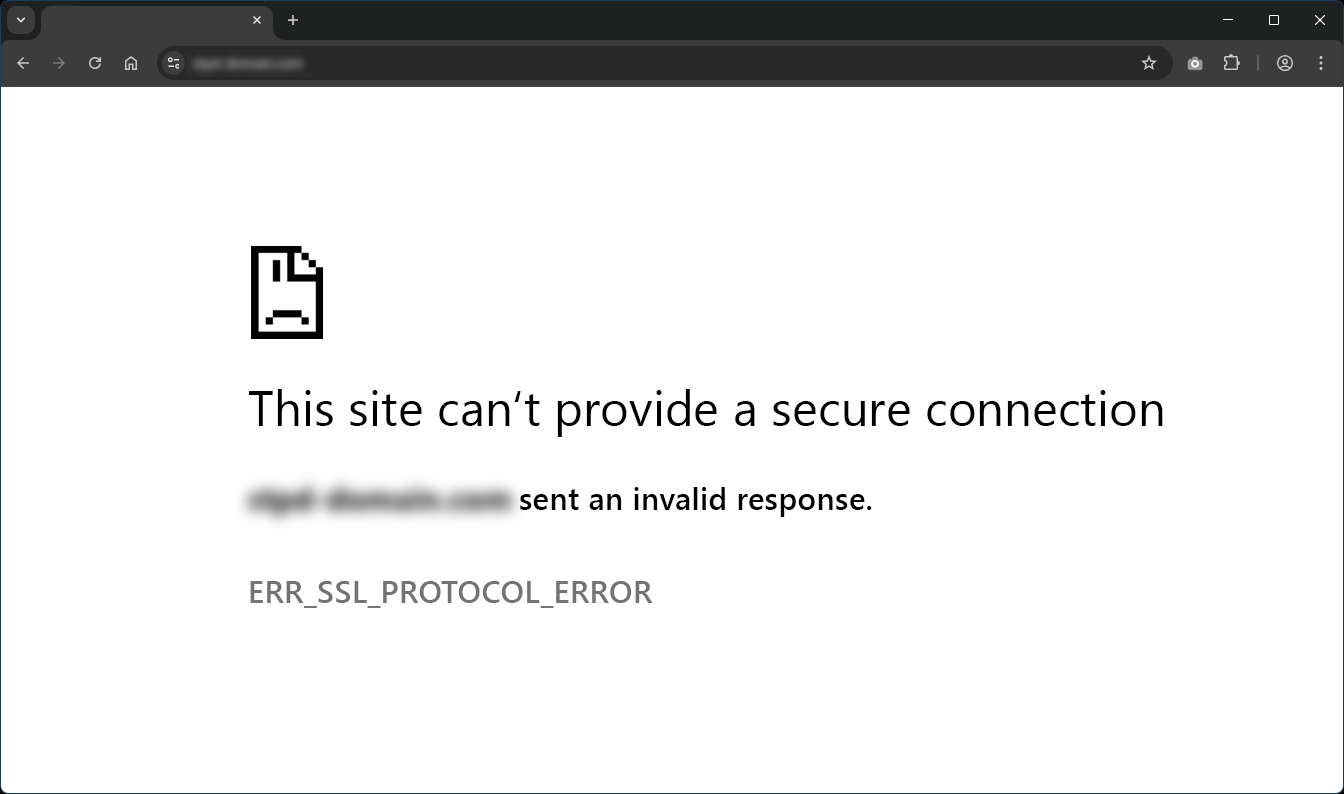
When you see ERR_SSL_PROTOCOL_ERROR, it can feel like a bit of a riddle. Let’s clear the fog by looking at the most common causes. Each scenario has a unique fix, so pinpointing the root problem is your key to success.
Misconfigured SSL Certificate
An SSL certificate problem often leads to an ERR_SSL_PROTOCOL_ERROR. If the certificate is mismatched, expired, or installed incorrectly, the handshake can’t proceed. In some cases, you might have an SSL certificate misconfiguration, such as using a certificate for mydomain.com on anotherdomain.com. Browsers catch this mismatch and label it unsafe.
Certificate misconfigurations also occur if the Certificate Authority (CA) isn’t trusted. That’s a bit like presenting a badge from a made-up organization – nobody recognizes it. Always ensure that your certificate is valid, matches the domain exactly, and comes from a reputable CA. If you host your site on a Contabo VPS or another hosting service, double-check your SSL settings through your control panel. Correcting a misconfiguration usually resolves the error quickly.
Mixed Content Issues
Mixed content (HTTP images or scripts on an HTTPS page) shows a “not secure” warning or blocks those resources, but it does not stop the TLS handshake itself. Check it only once the page loads over HTTPS. A related real cause is an HTTP service answering on the HTTPS port, which the browser cannot negotiate with.
Firewall Issues
Sometimes, your network’s firewall or antivirus software is behind SSL protocol errors. These security tools might block certain ports or flag SSL traffic as suspicious, especially if settings are overly strict.
If you suspect this is the culprit, temporarily disable your firewall or antivirus, then check if the error goes away. If it does, adjust your security settings to trust the site or the SSL port. Be cautious though – you don’t want to leave your system unprotected. Striking a balance between safety and connectivity is essential.
For more information about how security software might affect your connection, see the FAQ section.
Invalid Date/Time
Your system clock plays a bigger role than you might think. An incorrect date or time can break the SSL handshake, because each certificate has an SSL certificate expiration date. If your device thinks today is three years in the future, it may view a certificate as expired when it’s actually valid. Alternatively, if your clock lags behind, you might see “SSL certificate problem: certificate has expired” even though it’s perfectly fine.
To avoid time-related issues, allow your operating system to sync date and time automatically with a time server. This prevents your clock from drifting. Once you fix the time, try reloading the page. You’ll likely see that the handshake resumes smoothly.
Outdated Browser/OS
Sometimes, everything is right on the server side, but your browser or OS is out of date. Old software can fail to recognize modern encryption algorithms. It’s like trying to read a new language with a decade-old dictionary.
If you suspect an outdated setup, update your browser to the latest version. Check for operating system updates too. Even if you run an older system, you can often install patches that extend support for newer protocols. Keeping software current not only helps you avoid ERR_SSL_PROTOCOL_ERROR, but also keeps you safe from security vulnerabilities lurking on the internet.
QUIC Protocol
Google’s QUIC protocol aims to make web connections faster, especially for apps like YouTube or Gmail. It uses UDP rather than TCP. However, in some cases, QUIC can contribute to handshake problems. If your browser tries to establish a QUIC-based connection and something isn’t configured right, an SSL/TLS mismatch can occur.
To test this, disable QUIC in your browser flags or server settings. If the error stops, you’ve found your culprit. QUIC is still evolving, so occasional hiccups are common. Deciding whether to keep it disabled depends on whether you need QUIC’s speed benefits. Most users, especially casual surfers, can safely turn it off without missing much.
Server TLS Protocol or Cipher Mismatch
If the server only offers legacy protocols (SSL 3.0, TLS 1.0 or 1.1) or a cipher list modern browsers reject, the handshake fails. Current browsers expect TLS 1.2 or 1.3.
Wrong Port, SNI or Certificate Chain
Common server mistakes: HTTPS enabled on a port without the ssl flag, a certificate missing its intermediate chain, or a virtual host that does not match the requested name (SNI), so the server returns the wrong certificate or none.
Next, we’ll explore practical methods to fix these issues. Once you diagnose which of these causes is behind your ERR_SSL_PROTOCOL_ERROR, the steps are usually straightforward. Let’s walk through them.
How to Fix ERR_SSL_PROTOCOL_ERROR
You’ve identified possible causes. Now, let’s talk solutions. These steps aim to fix common triggers like bad certificates, incorrect system clocks, or software conflicts. Work through them in order, or pick the one that applies to your scenario.
1. Check Date and Time Settings
Many handshake issues revolve around SSL certificate expiration timing. First, open your device’s settings and confirm your date, time, and time zone are correct. If you see any discrepancy – like the year being off – fix it immediately. A mismatch makes valid certificates look expired or not yet valid.
If possible, enable automatic time updates from an internet server. This ensures your clock stays accurate. After you fix the time, refresh the problem webpage. If it loads without complaint, pat yourself on the back. You’ve just solved a surprisingly common cause of ERR_SSL_PROTOCOL_ERROR.
2. Review Server Recent Changes & Logs
Ever installed a new SSL certificate without double-checking the domain or intermediate CA? This oversight can trigger the error. If you manage your own server, review recent configuration changes. Scan log files for SSL warnings or domain mismatches.
Maybe you changed your domain name but forgot to update the certificate. Or you installed a certificate in the wrong directory. Look for lines in the logs that mention handshake failures or certificate mismatches. Once you spot a suspicious entry, correct it and test again. In many cases, that’s enough to restore normal browsing.
3. Clear SSL State
Sometimes, your system’s stored SSL data can corrupt over time. Clearing it resets the handshake process. To clear SSL state on Windows, open Internet Options, click the “Content” tab, then hit the “Clear SSL State” button. This flushes the SSL state cache, forcing your browser to fetch fresh certificate data.
On other operating systems, you can do something similar in your network or browser settings. This step only takes a moment and can save hours of troubleshooting later. After clearing, reload the problematic site. If handshake data was the issue, you’ll be back to a secure page in no time.
4. Delete Browser Cache
Browsers store cached data to speed up future visits, but sometimes that cache holds outdated certificate information. Give your browser a clean slate by clearing its cache. Look for settings labeled “Clear browsing data” or “Privacy and security.”
Focus on cached files and cookies. You can also remove browsing history, though that’s optional. If your SSL error is tied to stale data, cleaning up the cache often helps. Just keep in mind you’ll be logged out of sites you frequent. After clearing, revisit the page. You’ll either see the error vanish or be one step closer to a fix.
5. Update Browser
An old browser might not recognize the newest ciphers or support modern TLS versions. Head to your browser’s “About” page or settings menu to see if there’s an update. Do you see a prompt to install the latest release? Hit that button.
Once updated, your browser might handle those advanced encryption protocols without a hitch. The same goes for your operating system – outdated system libraries can disrupt SSL. If you’re clinging to an ancient OS, consider upgrading or applying patches. Newer software is more secure and better equipped to tackle ERR_SSL_PROTOCOL_ERROR triggers.
6. Verify SSL Certificate
A quick verify SSL certificate step can confirm if your certificate is valid. Use online tools to validate SSL certificate details, like the issuing CA and expiration date. A simple SSL check shows whether your certificate is trusted and matches your domain.
If something’s off – for example, if the domain name doesn’t match – replace or reinstall the certificate. For multi-domain or wildcard certificates, ensure you’ve set them up correctly in your server’s control panel. If your certificate fails the validation test, that’s your red flag. Fix it, and you’ll often see the error disappear instantly.
7. Disable Firewall
If your firewall is blocking the encrypted traffic, you can temporarily disable it to see if the error goes away. This is a quick method to confirm whether your firewall is behind the problem. Just remember to turn it back on afterward – or better yet, allowlist your trusted sites or specific SSL ports.
If you’re managing your server on a Contabo Dedicated Server, for instance, you can adjust firewall settings through your hosting panel or via SSH. Tweak the configuration to allow secure ports (like 443). This approach preserves protection while letting valid SSL traffic pass without interruption.
8. Check Your Proxy, VPN and Network
Turn off any VPN or proxy and try another network, such as mobile data or a different Wi-Fi. Corporate or public networks sometimes intercept HTTPS and break the handshake. If the site loads elsewhere, the problem is your network, not the site.
9. Switch off QUIC Protocol
If you suspect QUIC is messing up the handshake, disable it in your browser flags. Type “chrome://flags” (in Chrome), search for QUIC, and set it to “Disabled.” If your error vanishes, you’re done. Not using QUIC won’t hurt most browsing routines, so it’s a safe test.
Chrome: chrome://flags/#enable-quic. Edge: edge://flags/#enable-quic. Set “Experimental QUIC protocol” to Disabled and relaunch.
How the Error Looks in Chrome, Edge, Firefox and Safari
| Browser | What you see | Notes |
| Chrome, Edge, Brave, Opera | This site can’t provide a secure connection / sent an invalid response, ERR_SSL_PROTOCOL_ERROR | Chromium-specific string; net::ERR_SSL_PROTOCOL_ERROR in DevTools |
| Firefox | Secure Connection Failed with a code such as SSL_ERROR_RX_RECORD_TOO_LONG | Same root cause, different wording |
| Safari | Safari Can’t Open the Page / can’t establish a secure connection | Message differs by version |
For Site Owners: Fix ERR_SSL_PROTOCOL_ERROR on Your Server
If visitors on several devices and networks see the error, check the server. Back up your configuration before editing.
- Check the certificate: it must be valid, issued for the exact domain, and include the intermediate chain (fullchain.pem).
- Check TLS versions and the port: HTTPS must be served on 443 with ssl enabled, and only modern protocols allowed.
- Test the handshake from the command line.
- Reload and retest.
openssl s_client -connect example.com:443 -servername example.com
echo | openssl s_client -connect example.com:443 -servername example.com 2>/dev/null | openssl x509 -noout -dates
nginx example (test with sudo nginx -t, then reload):
server {
    listen 443 ssl;
    server_name example.com;
    ssl_certificate     /etc/letsencrypt/live/example.com/fullchain.pem;
    ssl_certificate_key /etc/letsencrypt/live/example.com/privkey.pem;
    ssl_protocols TLSv1.2 TLSv1.3;
}
Apache example (enable mod_ssl, then test with apachectl configtest):
<VirtualHost *:443>
    ServerName example.com
    SSLEngine on
    SSLCertificateFile /etc/letsencrypt/live/example.com/fullchain.pem
    SSLCertificateKeyFile /etc/letsencrypt/live/example.com/privkey.pem
    SSLProtocol -all +TLSv1.2 +TLSv1.3
</VirtualHost>
Using a free certificate? See our Let’s Encrypt guide. If a CDN sits in front of your server, also check its SSL mode and the Cloudflare error 521 guide.
ERR_SSL_PROTOCOL_ERROR FAQ
Why am I seeing ERR_SSL_PROTOCOL_ERROR on only one site?
This often happens when that site’s SSL certificate has a mismatch or expired date. It could also be a temporary server issue on their end. Checking the certificate details or asking the site owner about the SSL status might help.
Could antivirus software cause this error?
Yes. Some antivirus suites scan encrypted traffic for threats and can mistakenly block or alter certificates. If you suspect this, temporarily disable HTTPS scanning or create an exception for trusted sites.
Will clearing my browser cache delete my passwords?
It depends on your settings. Usually, deleting cache and cookies will log you out, but you can choose whether to remove saved passwords. Look for advanced options in your browser’s “Clear browsing data” menu.
Is this error always server-related?
Not necessarily. It could be your device clock, an outdated browser, or your firewall. Try local fixes first before assuming the server’s at fault.
Is it safe to proceed past the warning?
Only if you trust the site and know the risk. Insecure connections can expose your data. Proceed with caution or wait for the site owner to fix the underlying issue.
Why do I see net::ERR_SSL_PROTOCOL_ERROR specifically?
The net:: prefix is just how Chrome’s developer console labels network-stack errors internally — it’s the identical error to ERR_SSL_PROTOCOL_ERROR shown in the browser tab, not a separate problem. If you’re debugging via DevTools, you’ll see the net:: version in the Console/Network tabs and the plain version on the page itself.
Is ERR_SSL_PROTOCOL_ERROR different on Chrome vs other browsers?
The exact error text is Chromium-specific. Firefox shows an SSL-handshake message such as SSL_ERROR_RX_RECORD_TOO_LONG, and Safari shows “Safari Can’t Open the Page” with a certificate warning — the underlying causes (bad certificate, TLS mismatch, network interference) are the same across browsers, only the wording differs.
How do I fix ERR_SSL_PROTOCOL_ERROR on Android or iPhone?
Check the phone’s date, time and time zone are set to automatic, then clear the browser’s cache and cookies and update the browser and the OS. Turn off any VPN, ad blocker or security app that inspects HTTPS, and try mobile data instead of Wi-Fi. If only one site fails, the problem is probably on the site’s server.
How do I fix ERR_SSL_PROTOCOL_ERROR on my own website?
Confirm the certificate is valid, matches the domain and includes the full chain. Make sure the server listens for HTTPS on port 443 with ssl enabled and allows TLS 1.2 and 1.3. Then test with openssl s_client -connect yourdomain.com:443 -servername yourdomain.com, and check the nginx or Apache error log for handshake errors.
Is ERR_SSL_PROTOCOL_ERROR caused by my computer or the website?
It can be either. If the error appears on every site, the cause is local: clock, browser, antivirus, VPN or proxy. If it only appears on one site, especially on several devices and networks, the server’s certificate or TLS configuration is the likely cause and only the site owner can fix it.
Summary
ERR_SSL_PROTOCOL_ERROR means the TLS handshake failed. Visitors should fix the clock, clear SSL state and cache, update the browser and turn off VPN, proxy and antivirus HTTPS scanning. Site owners should check the certificate chain, enabled TLS versions and the HTTPS port configuration. For testing tools, see Free Tools to Monitor & Test the Security of Your Server or VPS.