In short. BentoPDF is a self-hosted, privacy-first PDF toolkit that runs entirely in your browser: merging, splitting, signing, and converting all happen on your own device, not a vendor’s server. The BentoPDF self-hosted build ships as one Docker container with 100+ tools built in, so a small Contabo VPS is enough to run a private instance for a team, with no PDF ever leaving your infrastructure.
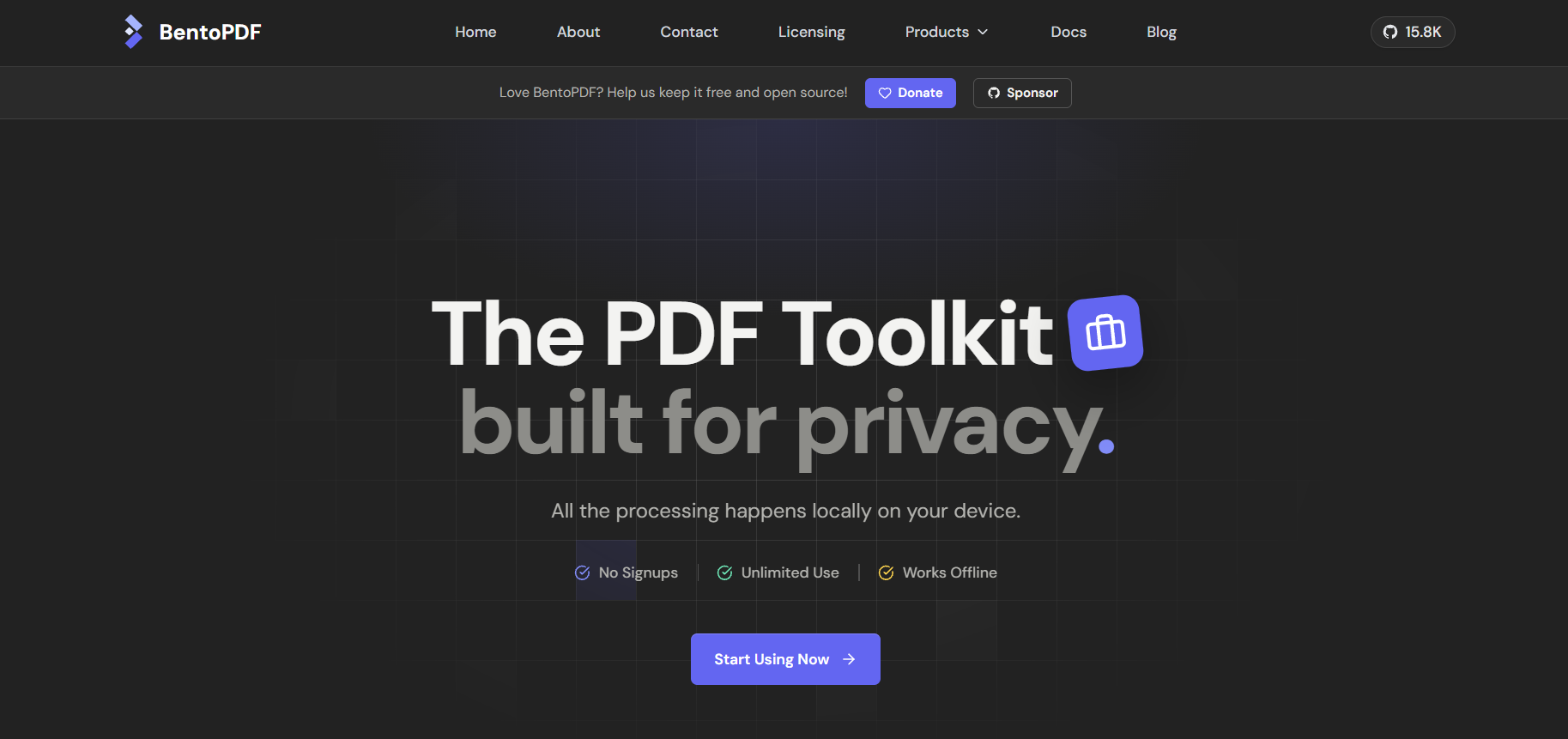
If you have ever hesitated before dropping a contract, a payslip, or a signed NDA into a free online PDF converter, that hesitation is the whole reason BentoPDF exists. It is an open-source PDF toolkit built so the processing never leaves the browser tab it runs in, and it is self-hostable, so you can put it behind your own domain instead of trusting someone else’s. For a legal team, an HR department, or anyone who handles other people’s documents for a living, that distinction between “processed in your browser” and “uploaded to a vendor” is the whole reason to look at this over a generic converter site.
Why BentoPDF Processes Everything in Your Browser
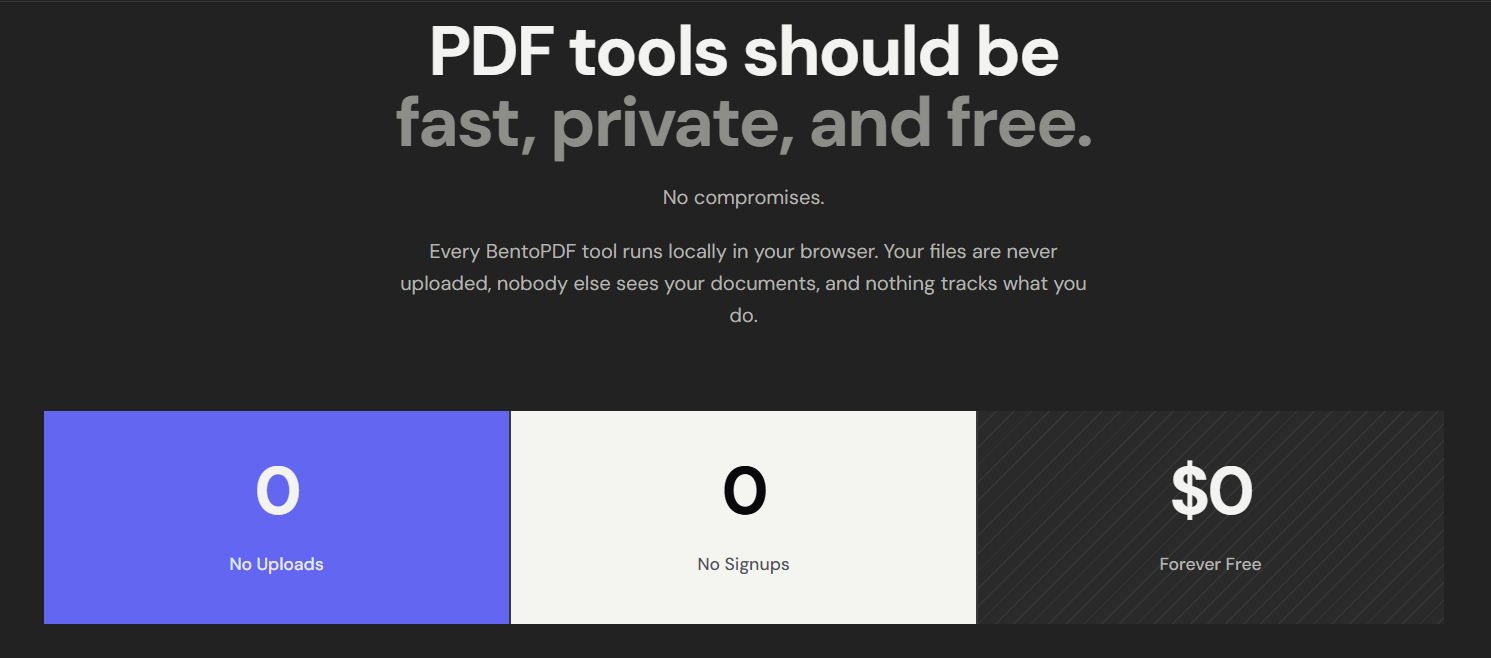
BentoPDF runs on client-side JavaScript and WebAssembly. When you merge two PDFs or strip metadata from a scan, the work happens inside your browser’s own sandbox, using libraries such as PDF.js for rendering and PDF-lib for the actual page manipulation. Nothing you upload is sent to a server for processing, so there is no server-side queue or temporary storage bucket, and no log line records that the file ever existed.
A practical example: opening the Merge tool and dropping in three PDFs never triggers a network request for the file contents. The browser reads them from disk, stitches the pages together in memory, and hands you a download. The only network traffic BentoPDF generates for most tools is the one-time download of its own WebAssembly modules from a CDN, and self-hosting removes even that step for the base toolset.
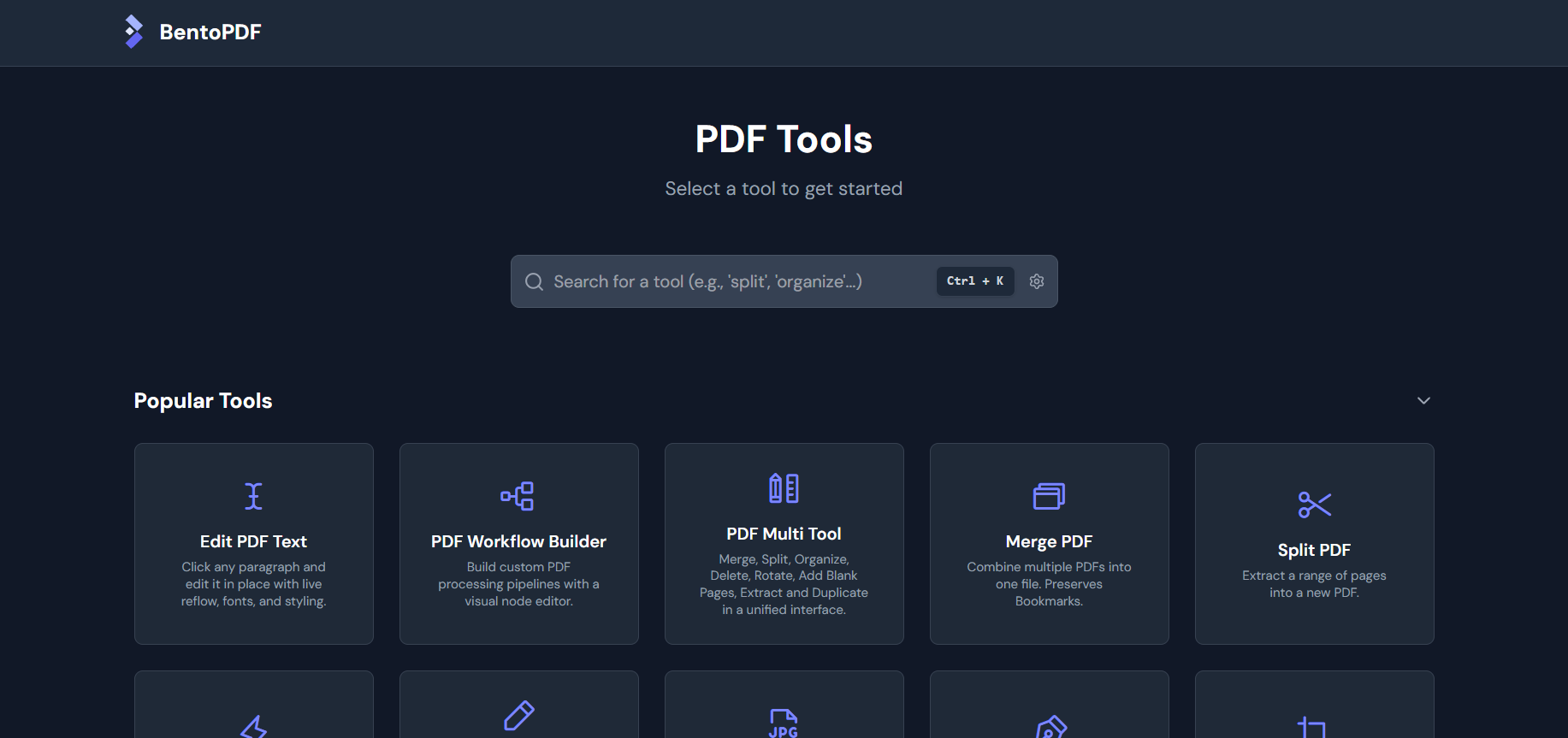
The toolkit covers more than 100 tools across six categories: organizing pages (merge, split, reorder, extract), editing content (annotate, redact, add page numbers, watermark), automating repetitive tasks (batch processing, workflows), converting to PDF (from images, Office documents, Markdown, EPUB), converting from PDF (to images, Office formats, and other outputs), and securing or optimizing files (encrypt, decrypt, compress, sign).
The self-hosted build is functionally identical to the public site: every tool is present and behaves the same, and only the marketing chrome is stripped away. Even OCR fits the same model, since Tesseract’s language packs load as WebAssembly the same way the other engines do, so a scanned invoice becomes searchable text without the image data going anywhere but your own screen.
Deploying BentoPDF with Docker on a VPS
Self-hosting BentoPDF means running its Docker image on a server you control, so the tools live at your own domain instead of a shared public site. What you need first:
- A ContaboVPS running Ubuntu 22.04 or later, reachable over SSH
- Docker and Docker Compose installed (the ordering flow on Contabo offers a Docker Add-On that installs both automatically, or you can add them yourself with
curl -fsSL https://get.docker.com | sh) - Port 3000, or whichever port you choose, open in your firewall
The project publishes two image variants. bentopdf-simple is the self-hosted build: every tool the public site has, with the marketing homepage, hero section, and testimonials stripped out. bentopdf (no suffix) is the commercial build, meant for a public-facing service under your own brand. For an internal or team deployment, the self-hosted build is the one to pull.
The fastest start is a single command:
docker run -d -p 3000:8080 --restart unless-stopped ghcr.io/alam00000/bentopdf-simple:latestFor anything meant to stay running, a Compose file is easier to manage and restart:
services:
  bentopdf:
    image: ghcr.io/alam00000/bentopdf-simple:latest
    container_name: bentopdf
    ports:
      - '3000:8080'
    restart: unless-stopped
Run docker compose up -d, then open http://your-vps-ip:3000 in a browser. The container listens on port 8080 internally and runs as a non-root user by default, a sensible default for anything reachable from the internet.
Prefer Podman over Docker on your distribution of choice? Every command above works unchanged if you swap the binary name: podman run -d -p 3000:8080 --restart unless-stopped ghcr.io/alam00000/bentopdf-simple:latest, and podman-compose up -d reads the same Compose file. For a production Linux box you plan to leave running long-term, Podman Quadlet integrates the container with systemd directly, so it restarts alongside the rest of your services after a reboot instead of depending on Docker’s own daemon staying up.
One configuration detail matters before you put this in front of a team: BentoPDF’s Office-conversion tools (Word, Excel, and PowerPoint to PDF) run a LibreOffice build compiled to WebAssembly, which needs SharedArrayBuffer, and browsers only grant that in a secure, cross-origin-isolated context. http://localhost works for a quick test, but a bare http://your-vps-ip will not extend that access once you move past your own machine. Put Nginx or Caddy in front of the container with a TLS certificate for anything beyond a local trial, and the isolation headers the browser needs come along with HTTPS.
Configuration Tips for a Team Deployment
A few build-time and runtime options are worth knowing once the base container is running:
- Custom branding. Set
VITE_BRAND_NAME,VITE_BRAND_LOGO, andVITE_FOOTER_TEXTas Docker build-time arguments – they only take effect when you build the image from source (docker build --build-arg ...), not when running the prebuiltghcr.ioimage. Set them to replace the BentoPDF name and logo with your own before you hand a URL to colleagues. - Disabling tools. Mount a
config.jsonwith adisabledToolsarray to hide specific tools, such as digital signing, without rebuilding the image. Useful if a compliance policy limits what a shared internal instance should expose. - Updating the image. Since the self-hosted build is pulled from a registry rather than built from source,
docker compose pull && docker compose up -dpicks up new releases without any manual rebuild step.
Why Self-Host BentoPDF Instead of Free Online PDF Tools
There is nothing to manage on the server side beyond keeping the container running. BentoPDF does all of its actual PDF work in the visitor’s browser, so the role of the VPS from Contabo here is narrow and specific: it hosts the Docker container, not a processing backend. There is no queue to monitor, no storage volume filling up with other people’s files, and nothing to answer when someone asks where uploaded documents are retained, because none are retained on the server at all.
That narrow role is still the whole point. Every free online PDF site makes the same implicit request: upload your file to our server so we can process it and (we promise) delete it afterward. Self-hosting BentoPDF removes that request entirely. The tool runs at a URL you control, backed by a VPS you control, and the only thing crossing the network is the page itself and the WebAssembly modules it loads once.
For sizing, the entry Core VPS tier fits this workload comfortably: the Cloud VPS 4 plan gives 4 vCPU cores, 8 GB RAM, and 100 GB SSD storage for around $7.20 a month, with unlimited traffic (subject to fair use policy) and a 200 Mbit/s port. That is more compute than a static-serving container needs, since the browser does the heavy lifting, not the VPS.
One licensing note before you brand it as your own tool: BentoPDF ships under a dual license. The AGPL-3.0 option is free provided your deployment (including any custom branding or code you add) also publishes its source under AGPL. A one-time commercial license, currently $79, covers closed-source or proprietary deployments where you would rather not open-source your fork.
FAQ: Self-Hosting BentoPDF
Is BentoPDF really private?
Yes. Every PDF operation runs as JavaScript and WebAssembly inside your browser tab, so files are never uploaded to a server for processing. The self-hosted build removes the last network dependency for the base toolset entirely; only a handful of advanced conversions load additional WebAssembly libraries from a CDN the first time you use them, and no file content is part of that request.
How do I self-host BentoPDF with Docker?
Pull the BentoPDF Docker image and run it with one command: docker run -d -p 3000:8080 ghcr.io/alam00000/bentopdf-simple:latest. For a setup that survives a reboot, use a Docker Compose file with restart: unless-stopped instead, pointed at the same self-hosted image tag. Either way, the app becomes available at port 3000 on your server within seconds, with no build step and no source code to clone first.
Do I need a powerful VPS to run BentoPDF?
No. Because BentoPDF does its PDF processing in the visitor’s browser rather than on the server, the VPS only needs to serve a lightweight container and static assets. An entry-level Core VPS with 4 vCPU cores and 8 GB RAM handles a small team’s worth of traffic easily; you are paying for reliable uptime, not processing power, when you pick a plan for self-hosted PDF tools like this one.