
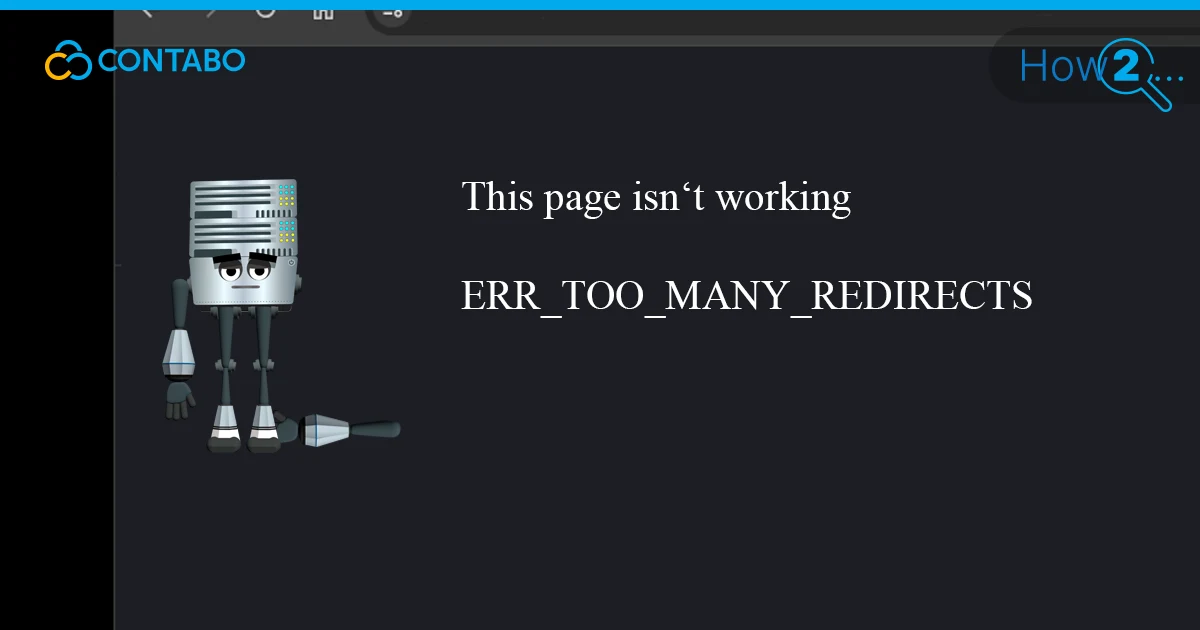
Your browser hit the redirect limit. It tried 10, maybe 20 times to load your WordPress site and kept getting bounced between two URLs with no exit. Now you’re looking at ERR_TOO_MANY_REDIRECTS and your site is completely inaccessible.
This error almost always comes from a misconfiguration, not a hack or mysterious server fault. The seven fixes below cover every practical cause, starting with the simplest ones. Work through them in order.
What Is ERR_TOO_MANY_REDIRECTS?
ERR_TOO_MANY_REDIRECTS is a browser error. It fires when the server sends the browser to a new URL, that URL sends it back to the first, and the cycle repeats endlessly.
Redirects are normal. A 301 redirect permanently moves a page from one URL to another. That’s fine. The problem happens when two URLs keep pointing at each other, trapping the browser in a loop it can never escape.
Browsers aren’t foolish about this. After roughly 10-20 attempts, they give up, stop loading the page, and surface the redirect loop error instead. Essentially, what too many redirects means is that your site’s routing instructions are broken and contradictory.
How This Error Looks in Chrome, Firefox and Safari
The root cause is always the same, but the wording on screen depends on your browser. This isn’t a device-specific issue either; it appears on desktop and mobile alike because it originates on the server.
Google Chrome
Chrome shows: “This page isn’t working. [domain] redirected you too many times.” The net::err_too_many_redirects code appears in the browser console. The desktop and mobile Chrome versions display nearly identical messages.
Mozilla Firefox
Firefox says: “The page isn’t redirecting properly. Firefox has detected that the server is redirecting the request for this address in a way that will never complete.”
Safari
Safari displays: “Safari can’t open the page. Too many redirects occurred trying to open [domain].”
Common Causes of the Redirect Loop Error
Six things cause the WordPress err_too_many_redirects error with any regularity:
- Mismatched WordPress URLs. WordPress Address and Site Address pointing at different URLs is the single most common trigger, especially after a domain migration.
- Corrupted browser data. Old cached redirects or bad cookies on the client side can replicate the loop even after you’ve fixed the server.
- Faulty plugin or theme. Redirect management, SSL enforcement, and SEO plugins routinely conflict with each other or with WordPress core, producing a loop.
- Broken .htaccess rules. A single malformed rewrite rule in the .htaccess file can create a loop that bypasses everything else.
- Conflicting HTTPS enforcement. Pushing HTTPS via a plugin and via .htaccess and via a server-level rule simultaneously means multiple systems are issuing contradictory redirect instructions.
- CDN SSL mismatch. A CDN set to Flexible SSL mode decrypts traffic at its edge and sends plain HTTP to your server, which then forces HTTPS, creating an infinite wordpress too many redirects loop.
Clear Browser Cache and Cookies
Before touching the server, rule out your own browser. Cached redirects and stale cookies make the browser follow a redirect chain that may have already been fixed on the server side.
To clear browser cache and cookies in Chrome:
- Open Chrome. Click the three-dot menu (top-right) and go to Settings.
- Navigate to Privacy and security > Delete browsing data.
- Set Time range to All time.
- Check Cookies and other site data and Cached images and files.
- Click Delete data.
Firefox and Edge follow the same pattern. Once done, reopen the browser and retry your URL. If the loop persists, the problem is definitely server-side.
While you’re at it: disable browser extensions one by one. Some security or redirect-management extensions intercept requests and trigger the same error independently of anything WordPress is doing.
Flush Your WordPress Cache
WordPress builds its own server-side cache to speed up delivery. If that cache got written during a misconfiguration, it can keep serving broken redirect instructions even after you’ve corrected the underlying problem.
There are two practical ways to clear WordPress cache:
Via your hosting panel:
Most managed WordPress hosts provide a one-click cache flush in their control panel. Look for a Cache or WordPress Overview section. Click Flush Cache and you’re done.
Via a caching plugin:
Install WP Fastest Cache if you don’t already have a caching plugin. After activation, go to WP Fastest Cache > Clear Cache. That purges all cached files immediately.
If the redirect loop disappears after flushing, you’ve confirmed the cache was serving stale redirect rules. If it’s still there, move on.
Fix WordPress URL Settings
Mismatched WordPress Address (URL) and Site Address (URL) fields are responsible for more wordpress too many redirects issues than anything else. This mismatch happens constantly after domain migrations, HTTPS switches, or botched search-replace operations.
Three ways to fix WordPress URL settings, depending on your access level:
Via WordPress Dashboard
If you can still reach wp-admin: go to Settings > General. Confirm WordPress Address (URL) and Site Address (URL) are identical, including whether they use https or http and whether they include www. Save Changes.
Via wp-config.php (Dashboard Locked Out)
Access your site’s files via FTP or hosting file manager. Open wp-config.php and add these two lines near the top, right after the opening <?php tag:
define('WP_HOME','https://yourdomain.com');define('WP_SITEURL','https://yourdomain.com');These values override whatever’s in the database, so they take effect immediately.
Via phpMyAdmin (Direct Database Edit)
Open phpMyAdmin from your hosting panel, locate your WordPress database, open the wp_options table. Find the rows named siteurl and home. Edit both option_value fields to match your correct URL. Click Go.
Changing the WordPress URL in the database is a last resort but it’s reliable. Once both values match, test your site.
Disable Plugins and Test Your Theme
A badly coded plugin is one of the most common causes of redirect loops in WordPress. The usual suspects: Rank Math, Yoast SEO, Redirection, Really Simple SSL, and any plugin that touches caching, SSL, or redirects.
Testing plugins via the dashboard:
- Go to Plugins > Installed Plugins.
- Select all plugins using the checkbox at the top.
- Choose Deactivate from the Bulk actions dropdown and click Apply.
- Check your site. If the loop is gone, one of those plugins was the cause.
- Reactivate plugins one by one, refreshing your site after each activation. The one that brings the loop back is the culprit.
Locked out of the dashboard? Rename the wp-content/plugins folder to plugins_disabled via your hosting file manager. WordPress will deactivate everything automatically. Rename it back once you have access.
If disabling all plugins doesn’t resolve the redirect loop, the active theme may be the problem. In the file manager, navigate to wp-content/themes and rename your active theme’s folder. WordPress falls back to a default theme. If the loop stops, contact the theme developer.
Reset the .htaccess File
The .htaccess file controls Apache and LiteSpeed server behavior, including redirect rules. One incorrect RewriteRule can create a loop that ignores everything you configure in WordPress itself.
To test whether .htaccess is the problem:
- Open your hosting file manager and navigate to the public_html directory.
- Find .htaccess, right-click it, and rename it to .htaccess_disabled.
- Load your site. If the redirect loop is gone, the file was the issue.
To generate a clean replacement: log in to WordPress dashboard, go to Settings > Permalinks, and click Save Changes without changing anything. WordPress will write a fresh, default .htaccess file.
Important: this only applies to Apache and LiteSpeed servers. NGINX doesn’t use .htaccess at all. If you’re on NGINX, redirect rules live in the server configuration, which you can’t edit directly. Contact your host.
Fix SSL and HTTPS Configuration
Forcing all traffic to HTTPS is correct practice. But enforcing it in multiple places at once is where everything breaks. The browser gets told to go to https by the plugin, which then gets told to go back to http by a competing rule, and around it goes.
Start by confirming the SSL certificate is valid and active. An expired or incorrectly installed certificate breaks the HTTPS redirect at the handshake level, which contributes to the loop.
Check SSL certificate status in your hosting panel under Security > SSL. If it’s expired or missing, install a new one before doing anything else.
Once SSL is confirmed active, enforce HTTPS using exactly one method:
- Server-level Force HTTPS. Available in most hosting panels. This is the most efficient method and takes priority over plugin or .htaccess rules.
- .htaccess redirect rule. Only use this if your host doesn’t provide a server-level option.
- WordPress plugin. Only if neither of the above is available.
Using two or all three simultaneously is what creates the wordpress https redirect loop. Pick one, disable the others.
Check Your CDN SSL Settings
CDNs are the silent cause of a lot of wordpress too many redirects problems because the conflict isn’t visible in WordPress itself. It lives in the gap between the CDN edge and your origin server.
The classic scenario: Cloudflare is set to Flexible SSL. This means Cloudflare accepts HTTPS from the visitor and connects to your origin over plain HTTP. Your server then forces HTTPS on that incoming HTTP connection, which sends it back to Cloudflare over HTTP again. Infinite loop.
To diagnose and fix:
- In Cloudflare dashboard, go to Overview > Advanced Actions and click Pause Cloudflare on Site. If the loop stops, Cloudflare was the cause.
- Go to Cloudflare SSL/TLS settings. If it shows Flexible, change it to Full (strict). This requires an active SSL certificate on your server.
- Unpause Cloudflare. The cloudflare flexible ssl redirect loop should be gone.
The same logic applies to other CDNs. Temporarily bypass the CDN, confirm the loop stops, then fix the CDN’s SSL configuration.
When Nothing Works: Next Steps
Seven fixes and still seeing ERR_TOO_MANY_REDIRECTS? That’s unusual, but it happens. Here’s where to look next.
Check your server’s error log.
Server logs (typically in /var/log/apache2/ or accessible via your hosting panel) often show the exact redirect chain that’s looping. That pinpoints which rule is responsible.
Run a database search-replace.
After a site migration, hardcoded old URLs can live in post content, widget settings, or options tables in the database, creating redirects that wp-config.php overrides can’t reach. Use WP-CLI’s wp search-replace command or the Better Search Replace plugin to swap old URLs for new ones.
Contact your hosting provider.
Managed hosts sometimes have server-level redirect rules that override your .htaccess. They can also identify redirect loops that originate in their own infrastructure, Cloudflare integrations, or shared server configurations that you can’t directly inspect.
Going forward, run major changes through a staging environment before touching production. That catches redirect loop issues before they take the live site down.