
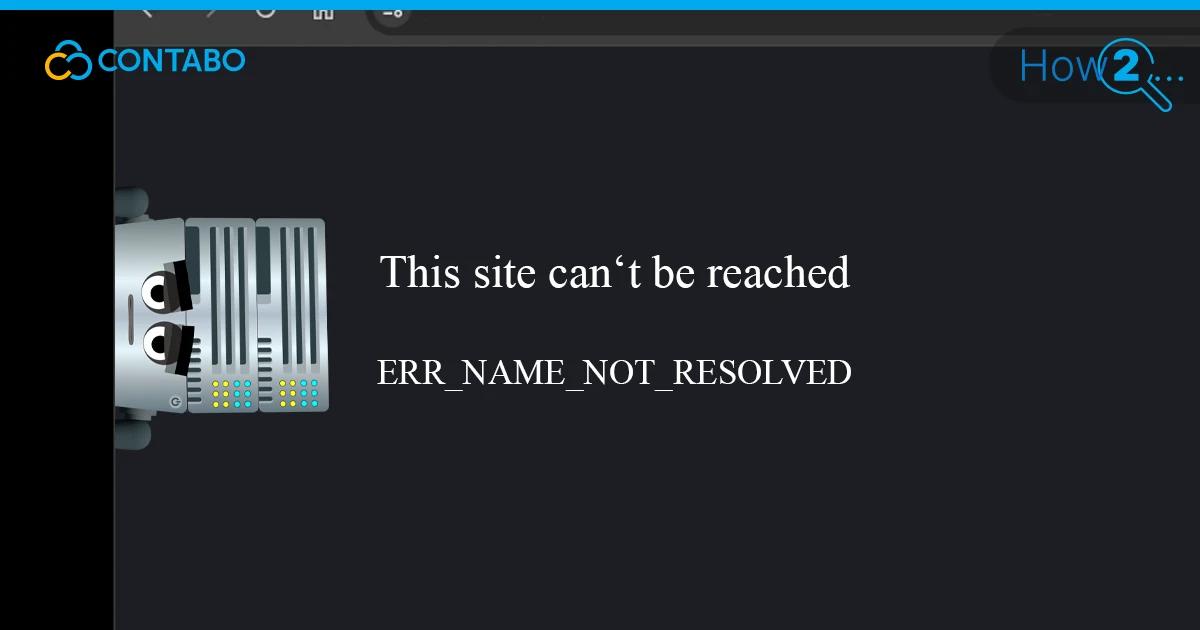
What Is ERR_NAME_NOT_RESOLVED?
ERR_NAME_NOT_RESOLVED means your browser’s DNS lookup for a hostname failed — the browser could not translate the domain name into an IP address. In Chrome’s developer console this appears as net::ERR_NAME_NOT_RESOLVED; the cause is almost always a stale local DNS cache, an unreachable DNS server, or a typo in the address.
Type a URL, hit Enter, and instead of a page you get net::err_name_not_resolved. The browser couldn’t translate the domain name into an IP address. That translation is DNS — Domain Name System — and something broke in that chain.
The process works like this: your browser asks a DNS resolver for the IP address behind a domain. If the resolver has it cached, the answer comes back immediately. If not, it queries authoritative nameservers up the chain until it finds the record. When that chain produces no valid answer, you get this error.
Common causes include:
- Outdated DNS cache — the stored IP address is stale because the site changed servers.
- Browser-level DNS cache in Chrome holding an old record independently of the OS.
- Firewall or security software blocking DNS queries.
- Broken or slow ISP DNS servers.
- Incorrect IP entry in the local hosts file overriding DNS.
- DNSSEC misconfiguration preventing the domain from resolving correctly.
The error also shows up as ‘The webpage is not available’ or ‘The site can’t be reached’ depending on the browser.
Fix 1: Flush DNS Cache on Windows, Mac and Linux
The OS keeps its own DNS cache to speed up lookups. If a site has changed its IP and the old address is still cached, every DNS query returns the wrong answer before it even reaches the internet. Flushing it forces a fresh lookup.
Windows
Open Command Prompt as Administrator and run:
ipconfig /flushdnsYou’ll see: “Successfully flushed the DNS Resolver Cache.” That clears the windows flush dns cache in one shot. On Windows 11, clear dns cache windows 11 works the same way.
macOS
Open Terminal and run the appropriate command for your macOS version:
sudo dscacheutil -flushcache; sudo killall -HUP mDNSResponderThis covers modern macOS versions. The flush dns cache mac command may differ on very old releases — check your specific version if you get an error.
Linux
On Ubuntu or Debian with systemd-resolved:
sudo systemd-resolve --flush-cachesOn other distributions, restart the DNS service:
sudo service nscd restartLinux flush dns cache commands vary by distro and DNS daemon. If unsure, check which resolver is running with:
systemctl status systemd-resolvedFix 2: Clear Chrome DNS Cache and Disable Page Preloading
Chrome doesn’t rely on the OS DNS cache alone. It keeps its own internal cache at chrome://net-internals/#dns. Flushing the OS cache won’t touch this one.
Clear Chrome’s DNS cache
- Open Chrome and paste chrome://net-internals/#dns into the address bar.
- Click Clear host cache.
While you’re there, also clear cookies and site data under Privacy and security > Delete browsing data. Stale cookies can cause DNS-related access failures independently of any caching issue.
Disable Chrome page preloading
Chrome’s ‘Preload pages for faster browsing and searching’ feature prefetches DNS entries for sites you might visit next. Useful in theory, but it can lock in stale DNS lookups and trigger the error.
- Go to Settings > Performance > Speed.
- Scroll down to ‘Preload pages’.
- Toggle it off.
This stops Chrome from pre-resolving domains in the background and eliminates a non-obvious source of the err_name_not_resolved chrome error.
Fix 3: Reset Firewall and Switch to a Public DNS Server
Firewall software intercepts network traffic. A misconfigured rule can block DNS queries entirely, making every domain unreachable. Resetting it to defaults is the quickest diagnostic.
Reset Windows Firewall
- Open Control Panel > System and Security > Windows Defender Firewall.
- Click Restore defaults in the left sidebar.
- Confirm by clicking the Restore defaults button.
If you’re running third-party antivirus or firewall software, check its settings or temporarily disable it to confirm whether it’s the cause.
Switch to a public DNS server
If the firewall isn’t the issue, the problem may be your ISP’s DNS server. Switch to one of these:
| DNS Server | IPv4 Primary | IPv4 Secondary | IPv6 Primary |
| 8.8.8.8 | 8.8.4.4 | 2001:4860:4860::8888 | |
| Cloudflare | 1.1.1.1 | 1.0.0.1 | 2606:4700:4700::1111 |
To change dns server on Windows 11:
- Open Control Panel > Network and Internet > Network and Sharing Center.
- Click Change Adapter Settings.
- Right-click your active network adapter and select Properties.
- Double-click Internet Protocol Version 4 (TCP/IPv4).
- Select ‘Use the following DNS server addresses’ and enter the values above.
- Click OK.
On macOS: System Preferences > Network > Advanced > DNS tab > click + to add a DNS server.
On Linux, edit /etc/resolv.conf with sudo and add:
nameserver 8.8.8.8 nameserver 8.8.4.4Fix 4: Add the Domain to Your Hosts File
Before making any DNS query, your OS checks the local hosts file for a matching domain-to-IP entry. If it finds one, DNS is bypassed entirely. This makes the hosts file both a diagnostic tool and a workaround.
If you add the correct IP for a domain and the site loads, you’ve confirmed the problem is DNS on the client side, not a server issue.
Hosts file locations
- Windows: C:\Windows\System32\drivers\etc\hosts (open with Notepad as Administrator)
- macOS / Linux: /etc/hosts (edit with: sudo nano /etc/hosts)
Add a line in this format:
93.184.216.34 example.comReplace the IP with the actual IP address of the site (check via ping or an online IP lookup tool). The hosts file windows 11 location is the same as in Windows 10.
Remove the entry once DNS is working correctly — leaving manual entries in the hosts file long-term causes its own access problems when IPs change.
Fix 5: Test with a Different Internet Connection
Not every ERR_NAME_NOT_RESOLVED problem lives on the device. Your router’s DNS settings or your ISP’s resolver could be the problem.
Two quick tests:
- Connect your computer to a mobile hotspot from your phone and try the site. If it loads, your router or ISP is the cause.
- Connect multiple devices to the same network and try the same site. If all of them fail, the network is definitely the issue.
If the network is at fault: power off the router completely, wait 30 seconds, then power it back on. Wait for the internet light to stabilize before reconnecting.
If the problem persists even after the router reboot, contact your ISP. They may have DNS server issues on their end — a known cause of widespread err_name_not_resolved errors that no client-side fix can solve.
Fix 6: Disable DNSSEC for Your Domain
DNSSEC adds cryptographic signatures to DNS records to prevent spoofing. When it’s configured correctly, it’s invisible. When it’s misconfigured, it can prevent the domain from resolving at all.
Check whether DNSSEC is the problem: look up the domain on WHOIS. If DNSSEC is listed as signed, and none of the previous fixes worked, the cryptographic records may not match what’s on your authoritative nameservers.
If this is someone else’s domain: there’s nothing you can do from the client side. Report it to the domain owner.
If this is your domain:
- Log in to your domain registrar’s control panel.
- Navigate to DNS or Nameservers settings.
- Find the DNSSEC tab and remove any DNSSEC records listed there.
Disabling DNSSEC removes the cryptographic layer but lets the domain resolve again. You can re-enable it later once the signing chain is set up correctly. The disable dnssec godaddy process follows the same pattern — find the DNSSEC section in domain settings and delete the DS record.
Fix 7: ERR_NAME_NOT_RESOLVED on Android and iPhone
Android
On Android, open Settings > Network & Internet > Internet, tap your connected Wi-Fi network, then Advanced > Private DNS, and switch to a public resolver such as 1.1.1.1 (Cloudflare) or dns.google (Google). If the error only appears on one network, forget that Wi-Fi network and rejoin it to force a fresh DHCP/DNS lease.
iPhone
On iPhone, go to Settings > Wi-Fi, tap the (i) next to your network, then Configure DNS > Manual, and add 1.1.1.1 or 8.8.8.8. If that doesn’t resolve it, go to Settings > General > Transfer or Reset iPhone > Reset Network Settings — this clears cached DNS and network configuration but does not erase your data.
ERR_NAME_NOT_RESOLVED FAQs
Is ERR_NAME_NOT_RESOLVED a common error?
Yes. It’s one of the most frequent DNS-related browser errors, particularly for users on ISPs with unreliable resolvers or on networks with aggressive caching.
What’s the difference between ERR_NAME_NOT_RESOLVED and ERR_CONNECTION_REFUSED?
ERR_NAME_NOT_RESOLVED means DNS lookup failed — the browser never found an IP address. ERR_CONNECTION_REFUSED means DNS worked, the browser found the server, but the server rejected the connection.
How do I prevent it from happening again?
Keep DNS cache cleared periodically, use a reliable public DNS server like 8.8.8.8, avoid DNSSEC configurations you’re not certain about, and always double-check domain spelling before concluding it’s a technical problem.
None of these fixes worked. Now what?
If all six methods fail, the problem likely lives upstream: your ISP’s DNS infrastructure, a domain registration issue, or a registrar-level propagation problem. Contact your hosting provider’s support team with the specific domain and error details.
What does ERR_NAME_NOT_RESOLVED mean?
It means your browser sent a DNS request for a domain and never got back a usable answer — most often because your local DNS cache is stale, your configured DNS server is unreachable, or the domain name was typed incorrectly.