
Running large language models used to mean cloud APIs, per-token billing, and trusting third parties with your data. Ollama changed all that for the better. It’s an open-source tool that makes running LLMs on your own hardware about as simple as installing any other package.
n8n Ollama integration gives you something really useful: AI-powered workflows running entirely on infrastructure you control. Your prompts stay local. Responses are generated on your VPS itself. There are no usage caps slowly draining your budget. For projects that are serious about AI and automation, this combination takes things to a whole new level.
This guide covers what Ollama actually does, how the machinery works under the hood, and the practical steps for wiring it into n8n workflows that don’t phone home.
What is Ollama: Core Concepts
Ollama is an open-source platform that simplifies running large language models locally. Instead of calling OpenAI or Anthropic APIs, you download models to your server and run inference there. Model management, serving, and optimization are all built in, so you don’t have to spend weeks building that infrastructure yourself.
The main Ollama features focus on accessibility. Model management works through simple commands: ollama pull llama3.2 downloads a model, ollama run llama3.2 starts a conversation. Behind those commands sits an API server that other applications can call. That’s your n8n integration point.
Ollama performance depends on your hardware, but the tool optimizes inference automatically. It juggles model loading, memory management, and GPU utilization without manual tuning. A 7B parameter model runs reasonably on consumer CPUs. Larger models benefit from GPUs but don’t strictly require them.
Here’s where Ollama security gets interesting: inference happens on your infrastructure. Your prompts never hit external APIs, and model files live on your disk. Responses generate locally, never touching someone else’s servers. For teams handling sensitive data or operating under compliance requirements, this fundamentally changes the risk profile compared to cloud LLMs. We think that matters more than most benchmark comparisons.
The platform supports dozens of models, such as Llama, Mistral, Gemma, and DeepSeek. You can run multiple models simultaneously and switch between them per request, picking the right model size and capability for each task instead of forcing everything through one endpoint.
How Does Ollama Work Under the Hood?
Ollama starts working when you pull a model. It downloads model files, stores them locally, and makes them available to its API server. When a request arrives, Ollama loads the model into memory (or keeps it loaded for subsequent requests), runs inference, and returns the result.
Where does Ollama store models? They live in a specific directory structure. On Linux, it’s typically ~/.ollama/models/. Each model consists of weight files, configuration, and metadata. Large models can take up several gigabytes. Disk space matters when you’re running multiple models.
The API server exposes a REST endpoint that accepts prompts and returns responses. This endpoint becomes the integration point for tools like n8n. When you send JSON with your prompt and parameters, Ollama processes it through the model, and you get text back. Streaming is supported too, so responses can arrive token by token instead of making you wait for full completion.
Memory management happens automatically. Ollama loads models on demand and unloads them when memory pressure increases. Even 8 GB RAM is enough to handle 7B models comfortably. Larger models generally need more memory or quantized versions.
GPU acceleration is optional but beneficial. If you have a GPU available, Ollama detects it and offloads computation there, which speeds up inference substantially for larger models. CPU-only inference still works for many use cases, particularly smaller models.
Why Run Ollama on a VPS Instead of Cloud
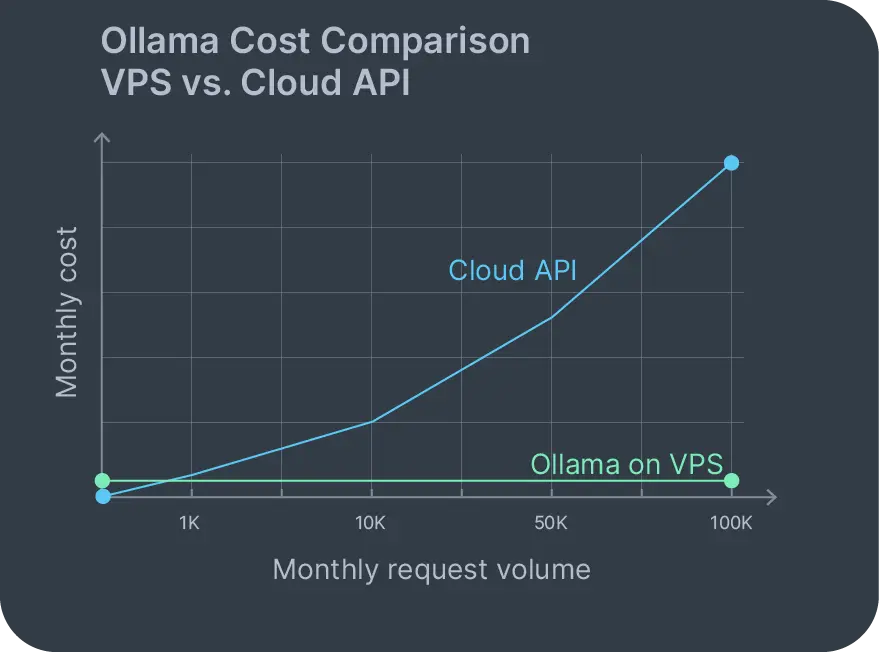
Ollama cloud pricing models typically involve per-token or per-hour charges that scale with usage. A 1,000-word prompt with a 500-word response might cost a few cents. Seems reasonable until you run 10,000 requests monthly and you’re suddenly paying hundreds. Self hosted Ollama on a VPS changes that cost model completely.
With an Ollama VPS, your monthly cost is the server. That’s it. Run 100 requests or 100,000 requests; the bill stays the same. No usage-based charges sneaking up on you. No surprise invoices when traffic spikes because someone shared your app on Reddit.
Data privacy is the other major factor. Ollama cloud service options exist, but they reintroduce the trust problem you were trying to escape. When you run self-hosted Ollama, your data never leaves your infrastructure. Customer support tickets, internal documents, proprietary code – all of it stays on your VPS during inference.
Compliance gets simpler too. GDPR means you need to know where your data is processed. HIPAA restricts how protected health information moves. Running Ollama locally keeps you inside those boundaries without negotiating complex data processing agreements with cloud providers who may or may not actually honor them.
You also control upgrades. New models release frequently. With a self-hosted setup, you pull the new model and test it immediately. No waiting for cloud providers to offer it. No vendor lock-in determining which models you can access or when.
Hardware matters for AI workloads – you need adequate CPU cores, RAM, potentially GPU access. Contabo offers a range of server plans optimized for AI and machine learning with configurations suited for running multiple models and handling concurrent inference requests without choking. You can of course run Ollama on any VPS, VDS, or Dedicated Server of your choice.
Choosing an Ollama VPS Provider
Running an Ollama VPS successfully requires matching hardware to your workload. The minimum viable setup is something like our Cloud VPS 10: 4 vCPU cores, 8 GB RAM, and 75 GB storage. That handles 7B parameter models reasonably. For a more comfortable setup, you could upgrade to a Cloud VPS 30 with 8 vCPU cores, 24 GB RAM, and 200 GB storage, which runs larger models and serves multiple concurrent requests without bottlenecks.
Storage matters because models are big. Llama3 7B is about 4 GB. Mixtral 8x7B approaches 50 GB. Running several models? Storage adds up fast. NVMe drives help – model loading from disk happens faster, reducing startup latency when a cold model needs to spin up.
A GPU isn’t mandatory but changes performance noticeably. A mid-range GPU like the A4000 cuts inference time for larger models substantially. For production workflows serving multiple users, GPUs justify their cost. For internal tools with lighter usage, CPU inference works fine. Explore the Contabo GPU Cloud to see what you can add to your server.
Network bandwidth affects initial setup. Pulling large models requires downloading gigabytes over the wire. After that, local inference doesn’t touch the network unless you’re integrating with external services through n8n. Still, that initial model download benefits from fast network connections that don’t throttle halfway through.
Running Ollama alongside other self-hosted tools makes sense. Pair self hosted Nextcloud for file storage with Ollama for document analysis. Add n8n for workflow automation. Deploy everything on one Nextcloud VPS instance if resources allow, or split across multiple servers depending on load and how you want to isolate services. Both apps are available on any Contabo VPS or VDS with free 1-click installation.
Step-by-Step: Deploying Ollama on a VPS
How to install Ollama on Linux is straightforward. SSH into your VPS and run the install script:
curl -fsSL https://ollama.com/install.sh | sh This downloads Ollama, installs it, and starts the service. On Ubuntu, Debian, or most modern Linux distributions, it works without additional dependencies.
After installation completes, verify Ollama is running:
ollama --version You should see the version number. Now pull your first model:
ollama pull llama3.2 This downloads Llama 3.2 (7B parameters) and stores it locally. Download time depends on your network speed and the model size. Llama 3.2 is about 4 GB, so expect a few minutes on a decent connection.
How to run Ollama after pulling a model:
ollama run llama3.2 This starts an interactive session where you can test prompts. Type a question, hit enter, watch the response stream in. Exit with /bye.
For how to run DeepSeek with Ollama on a VPS, the process is identical:
ollama pull deepseek-coder
ollama run deepseek-coder
DeepSeek models specialize in code generation and analysis. Running them locally means your proprietary codebases never leave your infrastructure during analysis or generation tasks. That’s a big deal if you’re working with anything that’d make your legal team nervous.
Where does Ollama store models on your system? Check the default path:
ls ~/.ollama/models Each model lives in its own subdirectory with weights, configuration, metadata. Managing disk space? This is where models accumulate.
The API server starts automatically and listens on localhost:11434 by default. Test it with curl:
curl http://localhost:11434/api/generate -d '{
  "model": "llama3.2",
  "prompt": "Why is the sky blue?"
}'
You should get a JSON response with the generated text streaming back. This endpoint is what n8n will call for integration.
For production usage, consider running Ollama behind a reverse proxy if you need external access. But for n8n integration on the same VPS, local access is sufficient and more secure – no need to expose ports you don’t have to.
If you’re specifically interested in DeepSeek models for enterprise AI applications, Contabo also offers self-hosted DeepSeek AI solutions that are tailored for optimal performance.
Prerequisites for n8n Ollama Integration on a VPS
Before wiring n8n Ollama integration together, you need both tools installed and accessible. Ollama is already running if you followed the previous section. Now install n8n.
The quickest path is Docker:
docker run -d --name n8n \
  -p 5678:5678 \
  -v ~/.n8n:/home/node/.n8n \
  n8nio/n8n
Or install via npm if you prefer:
npm install n8n -g
n8n start
Once n8n is running, access it at http://your-vps-ip:5678. Create an account. You’re ready to build workflows.
You could also choose to install n8n using our free 1-click option, but bear in mind that this will need to be set up first on a new server (or via a destructive reinstall on an existing one) followed by manual Ollama installation as above. Learn more about self-hosting n8n on a Contabo VPS.
How to integrate Ollama with n8n requires confirming network access. If both services run on the same VPS, Ollama’s API at localhost:11434 is already accessible. Test this from n8n’s perspective by creating a simple HTTP request workflow:
- Add a Manual trigger node
- Add an HTTP Request node
- Set method to POST
- URL:
http://localhost:11434/api/generate - Body: JSON with model and prompt
- Execute the workflow
If the response includes generated text, connectivity works. If it fails, check that Ollama’s service is running (systemctl status ollama) and listening on the expected port.
How to connect Ollama to n8n gets easier with n8n’s dedicated Ollama nodes. Instead of manually crafting HTTP requests, you can use the Ollama Chat Model node that handles the API format automatically.
Example Workflow: Automating Tasks With n8n and Ollama
Building an n8n Ollama workflow becomes practical once both services communicate. Here’s a real-world example: automated email analysis and response generation for customer support.
The workflow structure:
- Email trigger node watches an inbox
- Extract content from new emails
- Send email content to Ollama with a prompt
- Parse Ollama’s response
- Route to appropriate action
In n8n, this looks like:
Trigger Node: Email Trigger (IMAP)
- Configure to watch [email protected]
- Trigger on new unread messages
Ollama Chat Model Node:
- Model: llama3.2
- Prompt: “Analyze this customer support email and generate a response. Email: {{$json.body}}”
- Temperature: 0.7 for balanced creativity
IF Node: Check response sentiment
- Complex issue? Route to human.
- Straightforward? Prepare automated reply.
Send Email Node: Send generated response
- Only executes for straightforward cases
- Includes disclaimer that response was AI-generated

This n8n Ollama workflow runs entirely on your VPS. Customer emails never hit external APIs. Generated responses stay local until you explicitly send them. Your support inbox doesn’t become training data for someone else’s model.
How to use Ollama with n8n for these workflows means thinking about prompts and parameters. Temperature controls creativity – higher values produce more varied output, lower values produce more deterministic results. Context length limits how much text you can send per request. Model choice affects both capability and speed.
Content moderation workflows work well too. Monitor chat applications, filter messages through Ollama to detect problematic content, and flag for review. It all happens locally. Sensitive communications don’t leave your infrastructure during moderation, which matters if you’re dealing with employee discussions or customer complaints.
Social media content generation is another practical application. Schedule triggers, send prompts to Ollama based on your content calendar, generate post variants, and store for review. Marketing teams can batch-generate options without per-token API costs eating their budget.
Running self-hosted Ollama through n8n workflows removes usage-based billing from the equation. Experiment freely. Iterate on prompts dozens of times. Process high volumes during peak periods. Your cost stays fixed at the VPS hosting fee.
Ollama FAQ
How to install Ollama on Linux?
Run the installation script: curl -fsSL https://ollama.com/install.sh | sh. This installs Ollama and starts the service automatically on most Linux distributions. After installation, verify with ollama --version.
How to run Ollama?
After pulling a model with ollama pull model-name, start it with ollama run model-name for interactive testing, or call the API at http://localhost:11434/api/generate for programmatic access. The API approach is what n8n workflows use.
Where does Ollama store models?
Models are stored in ~/.ollama/models/ on Linux systems. Each model takes up several gigabytes depending on parameter count and quantization. Check this directory if you’re managing disk space or troubleshooting missing models.
How to connect Ollama to n8n?
Install both tools on the same VPS. Ollama listens on localhost:11434 by default. In n8n, use the Ollama Chat Model node and configure it to point at http://localhost:11434. Test connectivity with a simple workflow before building complex automations.
How to use Ollama with n8n?
Build workflows using n8n’s visual editor. Add an Ollama Chat Model node, configure your model and prompt, then connect it to trigger nodes (webhooks, schedules, file watchers) and action nodes (send email, update database, post to API). Prompts can include variables from previous workflow steps for dynamic content.
Conclusion
Ollama makes local LLM deployment accessible to teams that don’t have machine learning infrastructure expertise. Combined with n8n’s workflow automation, you’re building AI-powered systems that run entirely on your own hardware.
Fixed costs. Data that never leaves your VPS. Models you control. These benefits matter more than theoretical performance benchmarks or feature lists in marketing decks.
The Ollama pros and cons break down predictably. Pros: cost predictability, data privacy, compliance simplification, freedom to experiment without usage limits. Cons: you manage the infrastructure, performance depends on your hardware choices, you’re responsible for keeping models updated. For most teams self-hosting on a VPS, those trade-offs favor local deployment.
Self hosted Ollama paired with n8n creates workflows that don’t leak data or surprise you with API bills. Customer support automation, document analysis, content generation, and code review all happen locally, on servers you’re paying for anyway.
Ollama VPS requirements are straightforward: adequate CPU or GPU depending on your model choices, enough RAM for your selected models, and sufficient storage for model files. As we already mentioned, Contabo offers configurations suited for these workloads, including GPU options for teams running larger models at scale.
Running both tools on the same VPS keeps network latency minimal and simplifies deployment. Whether you’re processing proprietary documents, generating customer responses, or building internal AI copilots, n8n Ollama integration gives you the pieces to build it without external dependencies or vendor lock-in.
The infrastructure is ready. The tools are open source. Your AI workflows can run locally, privately, at predictable costs. Start integrating Ollama in your automations and see what’s possible.
