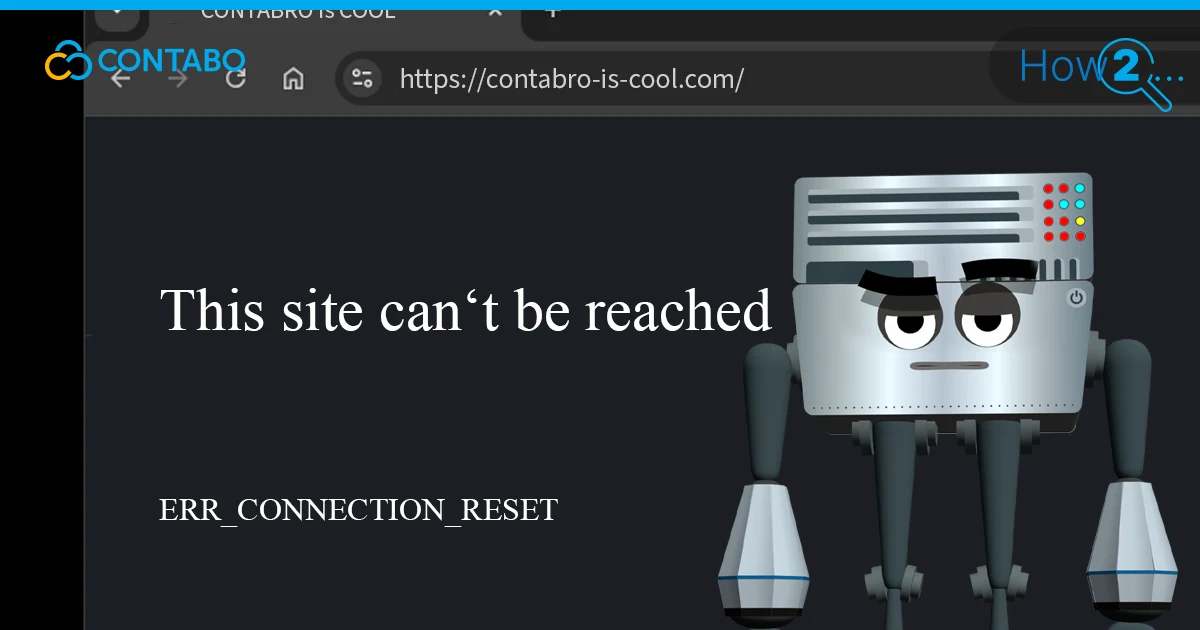
You click a link. Chrome throws ERR_CONNECTION_RESET at your face. No page, no data, just a terse error code on a white screen. The browser tried to talk to the server, the server hung up mid-sentence, and now you're stuck. This err_connection_reset error means the TCP connection between your browser and the remote server was forcibly closed before any data made it through. It's almost always a client-side problem, something on your machine, your network, or a middlebox between you and the server. Rarely, the website itself is broken.
The good news: it's fixable. Here are seven methods, ordered from the lazy five-second check to the nuclear option of resetting your entire network stack. Work through them in order and stop when the error goes away.
1. Check If the Website Is Down
Before you start ripping apart your network config, spend ten seconds confirming the problem isn't on the other end. If the website is down for everyone, no amount of cache-clearing on your laptop will bring it back.
Open a website down checker like Website Planet's "Is It Down" tool, UptimeRobot, or Down For Everyone Or Just Me. Paste the URL and hit enter. These services ping the site from external servers, so they'll tell you whether the problem is global or local to your connection.
If the site's dead for everyone, there's nothing to fix on your side. Wait it out, or contact the site owner if you've got their info. If it's up for the rest of the world and broken just for you, keep reading.
2. Disconnect VPN to Fix Connection Reset
VPNs route your traffic through an encrypted tunnel, which is great for privacy. It's less great when the VPN endpoint goes down, the server's overloaded, or the exit node has a flaky route to your destination. All of these can trigger the err_connection_reset error because the TCP handshake never completes.
Disconnect from your VPN and try loading the page again. If the page loads fine without it, the VPN is your problem. Try switching to a different server location within your VPN client. If every VPN location fails, something's wrong with the VPN service itself, not your local setup.
If you don't use a VPN, try installing one temporarily and connecting through it. Sometimes the connection reset happens because your ISP is blocking or throttling traffic to a specific destination. A VPN bypasses that.
One thing to avoid: don't toggle your VPN on and off while a page is actively loading. You'll interrupt the TCP session mid-stream and create more problems than you solve.
3. Restart Your Router
The oldest trick in networking, and still one of the most effective. Your router holds a lot of state in memory: DHCP leases, NAT tables, DNS cache, connection tracking. When that state gets corrupted or the routing table bloats after days of uptime, weird things happen. Connections drop. Pages refuse to load. You get ERR_CONNECTION_RESET for no obvious reason.
Power off your router. Wait 30 seconds. Not 5 seconds, not "press the button and immediately press it again." Thirty seconds lets the capacitors drain and the RAM fully clear. Power it back on and wait for the lights to stabilize.
While you're at it, restart whatever device you're browsing on. A reboot clears the OS-level network stack, kills stale sockets, and resets any configuration that drifted during uptime.
If the problem persists, test on a different device or switch to mobile data. If the same site works on your phone's cellular connection but not on WiFi, your router or ISP is the culprit. Call your provider and ask if there's an outage or if they're doing maintenance.
4. Clear Browser Cache in Chrome
Browsers cache aggressively. HTML, CSS, JavaScript, images, HSTS headers, certificates, and even failed connection states all get stored locally. When that cached data goes stale or gets corrupted, your browser can choke on it instead of making a clean request to the server. That's one way you end up staring at an err_connection_reset error.
To clear browser cache in Chrome:
- Click the three-dot menu in the top-right corner.
- Select "Delete Browsing Data" (or press Ctrl+Shift+Delete).
- Set the time range to "All time."
- Check all boxes: cached images and files, cookies, browsing history.
- Click "Delete data."
Fair warning: this will log you out of every website. You'll need to re-enter passwords everywhere. If that's a dealbreaker, start with just "Cached images and files" and leave cookies alone. But for a proper troubleshooting pass, nuke everything.
This fix applies to any browser, not just Chrome. Firefox, Edge, and Safari all have similar clear cache options buried in their settings menus.
5. Disable Antivirus and Firewall Temporarily
Security software is supposed to protect you. Sometimes it protects you from websites you actually want to visit. Antivirus programs with "web shields" and aggressive firewall rules can intercept outgoing connections, inspect them, and then drop them when they don't like what they see. From Chrome's perspective, the connection just vanishes. ERR_CONNECTION_RESET.
To test this, disable your firewall and antivirus one at a time. Turn off the antivirus first, try loading the page. If it still fails, re-enable the antivirus and disable the firewall instead. This way you identify which tool is blocking the connection.
The exact steps depend on your security software. Windows Defender, Norton, Kaspersky, Bitdefender: they all hide the toggle in different places. Check the vendor's documentation if you can't find it.
Important: don't leave these disabled. The moment you've confirmed whether they're causing the problem, turn them back on. If your antivirus was the one blocking the site, add it to the whitelist or exception list rather than keeping your machine unprotected.
If you're a website owner and visitors report this error, check your server's firewall configuration. Rules that rate-limit or block certain IP ranges can cause connection resets on the server side.
6. Turn Off Proxy Server Settings
A proxy server sits between your machine and the internet. When it works, you barely notice it. When it doesn't, your browser can't reach anything, and you get ERR_CONNECTION_RESET because the proxy dropped or rejected the request before it ever reached the destination server.
Proxy servers fail for predictable reasons: downtime, overloaded capacity, DNS misconfiguration, or stale credentials. Disabling the proxy temporarily tells you whether it's the root cause.
On Windows:
- Open Control Panel and go to Network and Internet, then Internet Options.
- Click the Connections tab, then LAN settings.
- Uncheck "Use a proxy server for your LAN."
- Check "Automatically detect settings."
- Click OK.
On macOS:
- Go to System Settings and select Network.
- Select your active connection and click Details.
- Click Proxies in the sidebar and toggle everything off.
- Click OK.
On Ubuntu/Linux:
- Click the network icon in the taskbar and open Settings.
- Find the Network Proxy section.
- Set it to Disabled.
If disabling the proxy fixes the error, the proxy itself needs attention. Talk to your network admin, or if it's a personal proxy, check that the service is running and your credentials haven't expired.
7. Reset TCP/IP and Flush DNS Settings
This is the heavy-handed option. If nothing else worked, your system's network stack might be corrupted at a level that individual settings can't fix. Resetting TCP/IP restores the Winsock catalog, flushes the DNS resolver cache, releases and renews your IP address, and puts everything back to factory defaults.
Before you do this, write down any custom DNS settings or static IP configurations you've set up. This reset wipes them.
On Windows, open Command Prompt as administrator and run these commands one at a time:
netsh winsock resetnetsh int ip resetipconfig /releaseipconfig /renewipconfig /flushdnsThe netsh winsock reset command rebuilds the Winsock catalog, which is the API layer Windows uses for all network communication. The ipconfig /flushdns command clears your local DNS cache, forcing fresh lookups for every domain. Restart your computer after running all five commands.
On macOS:
- Open System Settings and go to Network.
- Select your active connection and click Details.
- Go to TCP/IP in the sidebar.
- Click "Renew DHCP Lease" and confirm with OK.
- Open Terminal and run: sudo dscacheutil -flushcache; sudo killall -HUP mDNSResponder
On Ubuntu/Linux, open Terminal and run:
sudo dhclient -rsudo dhclientThis releases your current DHCP lease and requests a new one, clearing any stale network state. On most Linux distros, you can flush DNS with: sudo resolvectl flush-caches
What Causes ERR_CONNECTION_RESET
The err_connection_reset meaning is straightforward: your browser initiated a TCP connection, and something killed it before the HTTP response arrived. The "something" could be almost anything in the network path between your browser and the server.
Here are the most common triggers:
- Unstable internet connection. Weak WiFi signal, packet loss, or intermittent service drops active TCP sessions before they complete.
- Corrupt browser cache or cookies. Stale cached data confuses the browser during the connection handshake, and the connection resets instead of completing.
- VPN or proxy interference. A misconfigured, overloaded, or down VPN/proxy endpoint will silently drop connections.
- Firewall or antivirus blocking. Security tools that inspect HTTPS traffic can terminate connections they flag as suspicious, even when they're perfectly safe.
- Incorrect DNS settings. Outdated or misconfigured DNS prevents the browser from resolving the server's IP address, killing the connection before it starts.
- Outdated network drivers or router firmware. Old drivers have bugs. Those bugs cause packet corruption, dropped frames, and failed TCP handshakes.
- Winsock or TCP/IP corruption. A corrupted Winsock catalog or broken TCP/IP stack at the OS level means no connections work properly, not just one site.
The connection was reset error is almost always client-side. If you see it on every site, look at your machine or network. If it's one site only, that server probably has a problem.
How to Prevent the Connection Reset Error
You can't prevent every ERR_CONNECTION_RESET. Networks are messy, servers go down, and ISPs do weird things at 2 AM. But you can reduce how often this error shows up with some basic maintenance habits.
Keep your browser updated. Chrome, Firefox, Edge: they all ship networking fixes in every release. Running an old version means running old bugs. Same goes for your OS. Windows 10, Windows 11, and macOS all get network stack patches regularly.
Clear your browser cache periodically. You don't need to do it daily, but once a month keeps the cached data from going stale enough to cause problems. Update your router's firmware when updates are available. Most people install a router and never touch it again. That's how you end up with three-year-old firmware full of known bugs.
If you rely on a VPN or proxy, make sure the service is reliable and the configuration is correct. Free VPNs with overloaded servers are a constant source of connection errors. If you use custom DNS servers, verify they're still responding and that you haven't fat-fingered an IP address in your network settings.
For website owners: monitor your server logs for spikes in RST packets. Review your firewall rules periodically. Make sure your SSL/TLS certificates are valid and properly configured. A misconfigured certificate chain is one of the sneakier causes of connection resets that only affects certain clients.
ERR_CONNECTION_RESET FAQ
Why does ERR_CONNECTION_RESET appear on one site only?
When the err_connection_reset only one website scenario hits, the problem is usually server-side. That specific server might be overloaded, misconfigured, or actively blocking your IP range. It could also be a DNS caching issue where your machine has a stale record for that one domain. Try flushing your DNS cache first. If that doesn't work, the site's server or CDN is likely dropping your connection.
How do I fix ERR_CONNECTION_RESET on Android?
The err_connection_reset Android fix follows the same logic as desktop. Start by switching from WiFi to mobile data to isolate the problem. If mobile data works fine, your WiFi network is the issue. Clear Chrome's cache and data from Settings > Apps > Chrome > Storage > Clear Cache. If that doesn't help, go to Settings > System > Reset Options > Reset WiFi, mobile & Bluetooth. This resets your network settings without wiping your phone. Samsung devices have a similar path under Connections > More Connection Settings.
Does a VPN cause ERR_CONNECTION_RESET?
Yes, and it's one of the more common causes. VPN servers can be overloaded, experience endpoint downtime, or have routing issues to specific destinations. The encrypted tunnel adds complexity to every connection, and when any part of that tunnel breaks, you get a connection reset. Disconnect from your VPN and test the site directly. If it loads, switch to a different VPN server location.
What is the difference between ERR_CONNECTION_RESET and ERR_CONNECTION_REFUSED?
Different failure points. ERR_CONNECTION_RESET means a connection was established (or was being established) and then the remote end sent a TCP RST packet, killing it mid-stream. ERR_CONNECTION_REFUSED means the server actively rejected the connection attempt before it even started, usually because nothing is listening on the requested port. Reset is a dropped call. Refused is a "this number is not in service" message.
How do I fix ERR_CONNECTION_RESET on Windows 11?
The process on Windows 11 is identical to Windows 10. Open Command Prompt as administrator and run the full TCP/IP reset sequence: netsh winsock reset, netsh int ip reset, ipconfig /release, ipconfig /renew, and ipconfig /flushdns. Restart your computer. If the error persists after that, check your Windows Defender Firewall settings under Windows Security > Firewall & Network Protection, and verify no rules are blocking outbound HTTPS traffic. Updating your network adapter driver through Device Manager is worth trying too, especially after a major Windows 11 feature update that might have broken driver compatibility.
