
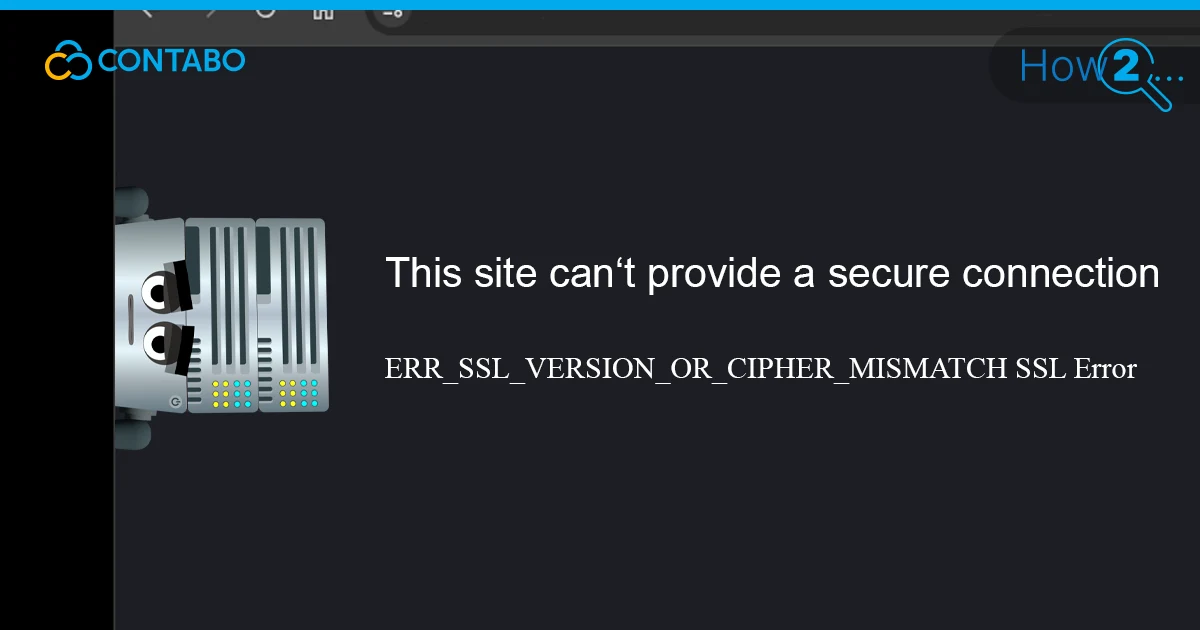
Visiting a website and landing on an ERR_SSL_VERSION_OR_CIPHER_MISMATCH warning is one of the more frustrating browser errors to deal with. There is no obvious indication of what went wrong, and the page simply refuses to load. At its core, this SSL protocol error means the browser, and the web server failed to agree on a secure way to communicate. The cause can range from an outdated server configuration to an expired certificate, or even security software interfering with the connection.
This article breaks down every common cause and walks through proven fixes, from server-side configuration changes to browser-level adjustments.
What Is ERR_SSL_VERSION_OR_CIPHER_MISMATCH
Every time a browser connects to a secure website, it performs a TLS handshake before any data is exchanged. During this handshake, the browser and server negotiate which encryption protocol and cipher suite they will both use. The ERR_SSL_VERSION_OR_CIPHER_MISMATCH SSL certificate error appears when this negotiation fails entirely meaning the browser and server share no common ground on how to establish a secure connection.
This is not a warning that can be bypassed safely. The connection itself never completes, and the browser blocks access because proceeding would mean transmitting data without proper encryption.
How the TLS Handshake Triggers This Error
The error originates from a TLS handshake failed event. The browser sends a list of supported TLS versions and cipher suites to the server. The server responds with what it can support. If there is no overlap between those two lists, the handshake collapses and the SSL handshake error is displayed.
The most common failure points are servers that only support outdated TLS versions, cipher suites that modern browsers no longer accept for security reasons, and certificate issues that cause the browser to abort the handshake before negotiation can finish.
Which Browsers Are Affected
ERR_SSL_VERSION_OR_CIPHER_MISMATCH is primarily seen as a Chrome SSL error, but every major browser encounters the same underlying problem under different names. Firefox displays a “Secure Connection Failed” message with error code SSL_ERROR_NO_CYPHER_OVERLAP. Safari reports that it cannot establish a secure connection. Edge, which shares its engine with Chrome, shows the same error message as Chrome.
The root cause is identical across all browsers, and the fixes covered here apply regardless of which browser is being used.
Causes of ERR_SSL_VERSION_OR_CIPHER_MISMATCH
Understanding the specific cause before attempting fixes avoids wasted effort. This SSL protocol error and SSL certificate error have several distinct origins, and the right fix depends on which one applies.
Outdated or Incompatible SSL/TLS Protocols
A server that only supports TLS 1.0 or TLS 1.1 will trigger this error in any current browser. Both of those protocol versions were officially deprecated by all major browsers starting in 2020 due to known security vulnerabilities. When a browser connects to such a server, a TLS handshake failed result is unavoidable because the browser refuses to negotiate over protocols it no longer considers safe. The fix must happen at the server level.
Expired or Mismatched SSL Certificate Name
An SSL certificate mismatch occurs when the domain name in the browser’s address bar does not match the domain name listed on the certificate the server presents. For example, a certificate issued only for example.com will cause an SSL certificate error when visiting www.example.com, if that subdomain is not covered. Expired certificates cause the same failure immediately. In both cases, the browser aborts the connection. The resolution is to update the SSL certificate, so it accurately reflects all domains and subdomains in use.
Misconfigured Web Server or CDN Settings
A Cloudflare SSL error is a frequent variation of this problem. If the SSL mode in Cloudflare is set to Flexible while the origin server expects encrypted connections, the mismatch in expected encryption can cause the error. The same SSL configuration error can appear on Apache or Nginx servers where cipher suites or protocol support has been manually and incorrectly restricted in configuration files.
Browser Cache and SSL State Conflicts
Browsers store SSL session data to speed up repeat visits. If that cached data becomes stale — for instance after a site updates its certificate or changes its SSL configuration — it can conflict with the new setup. Clearing the browser SSL cache and resetting the SSL state forces a fresh handshake, which often resolves the error without any server-side changes.
Antivirus or Firewall Interference
Some security programs intercept HTTPS connections to scan encrypted traffic. These programs act as a middleman and present their own certificate to the browser. If the security software’s certificate or its list of supported cipher suites is outdated, it creates an SSL handshake error between itself and the destination site, triggering the SSL certificate error even when the site itself is configured correctly.
How to Fix ERR_SSL_VERSION_OR_CIPHER_MISMATCH
Work through these steps in order. Each one addresses a specific cause, and most situations are resolved before reaching the end of the list.
Step 1: Verify the SSL/TLS Certificate
Before making any changes to browser or server settings, confirm whether the certificate itself is the source of the problem.
Check SSL Certificate Validity with Qualys
The Qualys SSL Labs SSL server test is a free tool that scans any public domain and produces a detailed report covering certificate validity, supported protocol versions, and cipher suite configuration. Entering the affected domain and running the test will surface expired certificates, deprecated TLS support, weak cipher configurations, and other SSL certificate error causes with a clear grade and explanation.
If the result shows an F grade or identifies TLS 1.0 or TLS 1.1 as the only supported versions, the fix must happen on the server before any client-side changes will have any effect.
Investigate a Mismatched Certificate Name
If the Qualys report shows that the certificate does not cover the domain being visited, the issue is an SSL certificate mismatch. The solution is to update the SSL certificate to one that includes all relevant subdomains — ideally a wildcard certificate covering both the root domain and all subdomains automatically. For servers managed through a hosting control panel, reissuing the certificate for the correct domain names is typically straightforward. For directly managed servers, the certificate needs to be reissued through the certificate authority with the correct Subject Alternative Names.
Step 2: Reconfigure SSL Settings
Once the certificate is confirmed as valid, the next step is checking the SSL configuration at the server or CDN level.
Reconfigure SSL via Cloudflare
For sites running through Cloudflare, navigate to the SSL/TLS section of the Cloudflare dashboard. The SSL mode should be set to Full (Strict) when the origin server has a valid certificate installed. The Flexible mode makes Cloudflare connect to the origin over plain HTTP, which can generate a Cloudflare SSL error in certain configurations. If the error persists after switching to Full (Strict), run the Qualys SSL server test directly against the origin IP to confirm the origin certificate is valid.
For servers configured without a CDN, review the cipher suite and protocol settings in the server configuration file. On Nginx, the relevant directives are ssl_protocols and ssl_ciphers. On Apache, they are SSLProtocol and SSLCipherSuite. Remove any references to TLSv1 or TLSv1.1, and explicitly enable TLSv1.2 and TLSv1.3.
Step 3: Enable the Latest TLS Version
If the server configuration is correct, the issue may be on the client side, particularly on older systems or browsers that have not been updated recently.
Enable TLS 1.3 in Chrome
Chrome manages TLS settings automatically in recent versions. To verify, enter chrome://flags in the address bar and search for TLS. Check that no flag is restricting the browser to older protocol versions. Keeping Chrome updated is the most reliable way to ensure TLS 1.3 support is active, as Google enables it by default through regular browser updates.
Manage TLS Settings in Windows
Windows controls which TLS versions are available at the operating system level, which affects all browsers. On older Windows versions, the difference in TLS 1.2 vs TLS 1.3 support can be the root cause of the error. To check and enable TLS versions, open Internet Options via the Control Panel or Start menu, navigate to the Advanced tab, and scroll to the Security section. Confirm that TLS 1.2 and TLS 1.3 are both checked. Enabling them and restarting the browser often resolves the error immediately on older systems.
Step 4: Disable the QUIC Protocol
Chrome uses an experimental transport protocol called QUIC for certain connections. In some server or network configurations, QUIC can interfere with the standard TLS negotiation and contribute to the ERR_SSL_VERSION_OR_CIPHER_MISMATCH error. To disable the QUIC protocol in Chrome, enter chrome://flags in the address bar and search for Experimental QUIC protocol. Set the flag to Disabled and relaunch the browser. This forces Chrome to fall back to standard TCP-based TLS connections.
Step 5: Clear Browser Cache and SSL State
Stale cache data is a common cause of this error, especially after a site has recently changed its certificate or SSL configuration. In Chrome, open Settings, go to Privacy and Security, and select Clear Browsing Data. Set the time range to All Time, select Cached Images and Files along with Cookies and Other Site Data, and clear both.
On Windows, the SSL state is stored separately from the browser cache. To clear it, open Internet Options, navigate to the Content tab, and click Clear SSL State. This removes stored SSL session data system-wide and forces a clean handshake on the next connection attempt.
Step 6: Review Antivirus and Firewall Settings
If the error persists after all previous steps, check whether security software is intercepting the HTTPS connection. Most antivirus programs with HTTPS scanning capabilities label this feature as HTTPS scanning, SSL filtering, or Web Shield. Temporarily disabling it and retrying the connection will confirm whether the software is responsible for the SSL handshake error.
If disabling HTTPS scanning resolves the error, the long-term fix is to update the antivirus software to its latest version, which usually includes an updated certificate and cipher list. Adding the affected site to the antivirus exclusion list is another option. In this scenario, the SSL cipher mismatch is occurring between the antivirus proxy and the destination server, not between the browser and the server directly.
Preventing SSL Errors in the Future
Keep SSL/TLS Certificates Up to Date
The most common preventable cause of SSL certificate errors is certificate expiration. Renewal reminders should be set at least 30 days before the expiration date. Most certificate authorities and hosting platforms support automatic renewal through protocols like ACME, which is what powers Let’s Encrypt. Enabling auto-renewal eliminates expiration as a risk. When updating an SSL certificate, always verify that the new certificate covers all subdomains in use, including both the root domain and the www variant.
Monitor SSL Configuration Regularly
Server configurations can drift over time, particularly after software updates or infrastructure changes. Running a periodic SSL server test through Qualys SSL Labs takes only a few minutes and will surface newly deprecated cipher suites, protocol gaps, or certificate issues before they affect visitors. A monthly check as part of routine maintenance ensures problems are caught proactively. Qualys also benchmarks the configuration against current best practices, so the results highlight not just errors but also areas where the configuration can be tightened further.
ERR_SSL_VERSION_OR_CIPHER_MISMATCH FAQ
What causes ERR_SSL_VERSION_OR_CIPHER_MISMATCH?
This error occurs when the browser and web server cannot agree on a shared TLS version or cipher suite during the initial handshake. The most common causes are a server configured with outdated protocol support, an expired or mismatched SSL certificate, a misconfigured CDN, stale browser cache data, or security software intercepting the HTTPS connection.
How do I fix an SSL cipher mismatch error?
Start by running the affected domain through Qualys SSL Labs to determine whether the SSL protocol error originates on the server side. If the server only supports deprecated cipher suites or old TLS versions, the server configuration needs to be updated to support TLS 1.2 and TLS 1.3 with modern cipher suites. On the client side, clearing the browser cache, resetting the SSL state, and temporarily disabling HTTPS scanning in antivirus software will address SSL cipher mismatch issues caused by local factors.
What does “TLS handshake failed” mean?
A TLS handshake failed message means the browser and server could not complete the negotiation phase required before any data can be exchanged. This SSL handshake error occurs when there is no overlap between the protocol versions or cipher suites each side supports, or when a certificate problem causes the browser to abort before negotiation can finish.
How do I enable TLS 1.3 in my browser?
In Chrome, keeping the browser updated to the latest version is sufficient, as TLS 1.3 support is enabled by default in all recent releases. The chrome://flags page can be used to verify that no flag is restricting the minimum TLS version. The TLS 1.2 vs TLS 1.3 distinction also applies at the Windows level: open Internet Options, navigate to the Advanced tab, and confirm both TLS 1.2 and TLS 1.3 are checked under the Security section.
How do I clear my SSL state in Windows?
Open Internet Options through the Control Panel or Start menu, click the Content tab, and select Clear SSL State. This removes all cached SSL session information from the operating system and forces a fresh TLS negotiation the next time a secure connection is attempted.