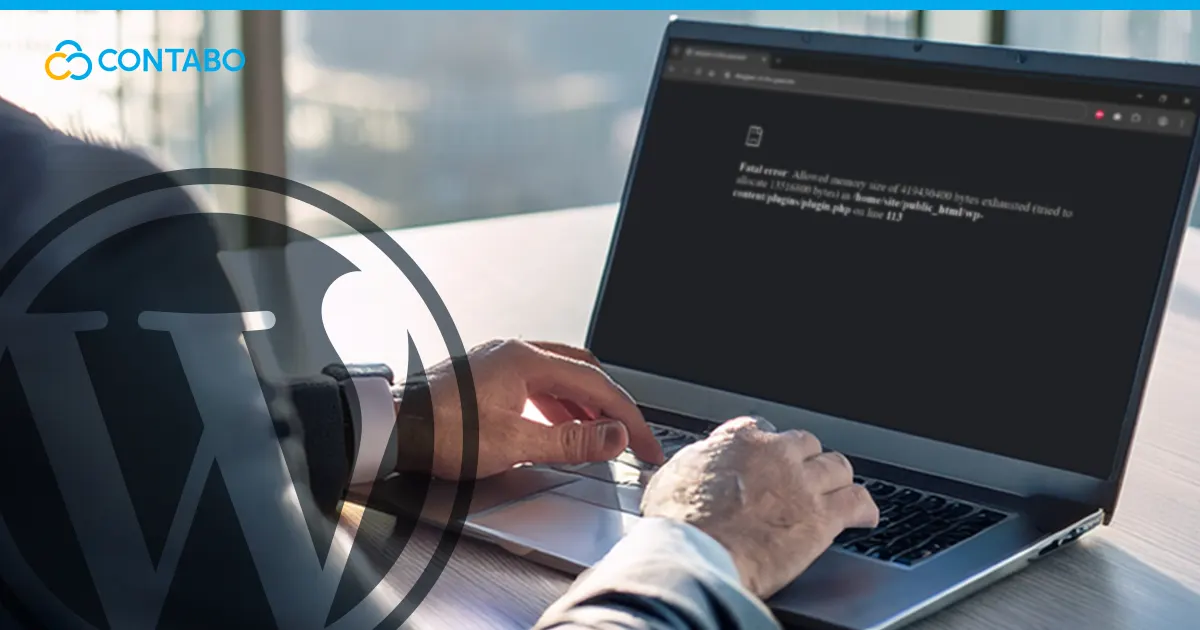
Every website owner dreads seeing their thriving site suddenly replaced by a stark white screen or a cryptic line of text. Among the most common culprits behind this disruption is the wordpress memory exhausted error. It strikes when your site attempts to perform a task that requires more resources than your server has currently allocated. Whether you are installing a new heavy-duty plugin, processing a large batch of images, or simply running a script that got stuck, hitting this ceiling brings operations to an immediate halt.
This issue is not necessarily a sign of a broken website but rather a safety mechanism doing its job too strictly. Your web server sets a specific wordpress memory limit to prevent any single script from consuming all available RAM and crashing the entire system. While this default cap protects the server, it is often set too low for modern, feature-rich websites. Fortunately, because this is a configuration setting rather than a code bug, increasing the available memory is a standard administrative task. By adjusting a few configuration files, you can give your site the breathing room it needs to operate smoothly again.
What Is the WordPress Memory Limit?
To understand why your site crashes, you must first look at the technology powering it. WordPress is built on PHP, a versatile server-side programming language. Every time a visitor opens a page or you save a draft, PHP scripts execute on the web server to generate the HTML that the browser displays. Like any computer program, these scripts require temporary storage space, known as Random Access Memory (RAM), to function.
The wordpress php memory limit is essentially a budget cap placed on the amount of RAM a single PHP script can use at any one time. Think of it as a safety valve. Without this limit, a poorly written script or a malicious process could consume every megabyte of available RAM, crashing not just your website but potentially the entire server and other sites hosted on it.
By default, WordPress attempts to set this limit to 40MB for a single site and 64MB for multisite installations. However, your hosting provider often overrides this with their own server-level PHP configuration. When a script tries to allocate more memory than this limit allows, the server kills the process immediately to protect resources, resulting in the fatal error message users see.
What is causing “WordPress memory limit exhausted” error?
The primary trigger for a WordPress memory limit exhausted error is rarely a single catastrophic event. Instead, it is usually the cumulative weight of the software running on your site. A fresh installation of WordPress is lightweight and runs comfortably within minimal limits. However, as you grow, the demand for resources increases.
Feature-rich plugins are the most common culprits. Comprehensive tools like WooCommerce, page builders (like Elementor or Divi), and heavy security suites load significant amounts of code into memory every time a page is requested. If you run a backup plugin that compresses large files or a chat widget that maintains active connections, the memory usage spikes further.
Sometimes the issue is not the quality of the plugins but the quantity. Even lightweight plugins add to the total load. If your php memory limit is set to a modest 64MB and you have thirty active plugins, the combined memory required to initialize all of them might exceed the available capacity before the page even finishes loading. Additionally, background tasks like automatic updates or scheduled posts can trigger the error unexpectedly, even when no one is actively browsing the site.
How to Check WordPress Memory Limit?
Before making any changes to your server files, it is vital to know your starting point. Many users assume they are running on low resources when the issue might actually be a conflict elsewhere. To check php memory limit effectively, you do not always need complex command-line tools. WordPress comes with built-in diagnostic features that provide this transparency.
The easiest method is to use the Site Health tool found directly in your dashboard. Navigate to “Tools” and select “Site Health.” Once the page loads, switch to the “Info” tab. You will find several dropdown sections listing technical details about your installation. Click on the “Server” section to expand it. Here, the system lists your server specifications, including the PHP version and the current WordPress memory limit allocated to your scripts. This number tells you exactly what the application sees, which is often different from the theoretical maximum your hosting plan advertises.

If you cannot access your dashboard because the error has already locked you out, you might need to check the php configuration directly through your hosting control panel or by creating a simple diagnostic file. By creating a text file named info.php containing the standard phpinfo() function and uploading it to your root directory, you can view the raw server environment settings in your browser. This detailed report confirms the hard limit set by your provider, allowing you to see if the restriction is coming from WordPress itself or the underlying server architecture.
How to Increase WordPress Memory Limit?
Once you have confirmed that your current resources are insufficient, the solution is to manually increase wordpress memory limit. This process involves editing configuration files to explicitly request more RAM from the server. It is important to note that you cannot set this value to infinity; you are still bound by the physical hardware limitations of your web hosting plan. However, most default configurations are set far lower than the actual maximum capacity, giving you plenty of room to scale up.
The goal is to increase php memory limit to a value that supports your plugins without destabilizing the server. For most standard WordPress sites running modern themes and plugins, 128MB is a good baseline. If you are running an e-commerce store with WooCommerce, the recommended minimum is often 256MB. Before proceeding with any file edits, always create a full backup of your website. These files control core functionality, and a syntax error here could temporarily take your site offline.
Adjust wp_memory_limit in wp-config.php
The most common and effective way to handle this is by defining the limit within the WordPress configuration file itself. This tells the application exactly how much memory it is allowed to use before hitting the ceiling. You will need to access your website files using an FTP client or the File Manager in your hosting control panel.
Locate the wp-config.php file in the root directory of your WordPress installation. Download it to your computer or open it in a text editor. You need to look for the line that says “That’s all, stop editing! Happy publishing.” Just before this line, paste the following code snippet:
define( 'WP_MEMORY_LIMIT', '256M' );
define( 'WP_MAX_MEMORY_LIMIT', '512M' );
The first line sets the standard memory limit for your front-end pages. The second line, WP_MAX_MEMORY_LIMIT, specifically boosts the memory available for administrative tasks in the dashboard, which are often more resource-intensive. This code instructs WordPress to set the memory limit to 256 megabytes for visitors and up to 512 megabytes for backend operations. Save the file and upload it back to the server, overwriting the old version. In many cases, this is the only step required to make the error disappear.
Adjust memory_limit in php.ini – with and without .htaccess
If editing the WordPress config file does not work, it usually means your web server has a hard cap preventing the application from requesting more resources. You must address this at the server level by modifying the php configuration directly.
The first method involves the php.ini file. This is the global configuration file for PHP. In shared hosting environments, you may not have access to the main file, but you can often create a distinct php.ini or .user.ini file in your root directory. Open this file and add the following line:
memory_limit = 256MIf your server runs on Apache, you can alternatively use the .htaccess file. This hidden file sits in your root directory and controls server variables. Open it and look for the # END WordPress line. Paste the following directive inside the file:
php_value memory_limit 256MThis command overrides the default memory_limit for any PHP process running in that directory. If you are unsure which method applies to your specific hosting environment, checking your provider’s documentation is recommended.
WordPress Memory Limit FAQ
What is the recommended memory limit for a WordPress site?
There is no single number that works for everyone, but general standards exist. For a basic blog with standard theme functionality, 64MB is often sufficient. However, for most modern sites, 128MB is considered the baseline to ensure stability. If you are running an online store with WooCommerce or using complex page builders, you should aim for 256MB to prevent timeouts during checkout or heavy editing sessions.
I updated the files, but the limit did not change. Why?
If you have edited your configuration files and the limit remains stuck, your hosting provider likely has a hard restriction in place. On shared hosting plans, providers often lock the maximum allowable memory to ensure fair usage among all customers on that server. No amount of file editing will bypass this hard cap. If your site consistently hits this ceiling, it is a clear signal that you have outgrown your current plan. To get dedicated resources and full control over your server environment, moving to a high-performance Contabo WordPress VPS is often the necessary next step to ensure your site continues to grow without restrictions.
Does increasing the memory limit make my website faster?
Not directly. The memory limit is a ceiling, not a speed dial. Increasing it prevents your site from crashing when it processes heavy tasks, but it does not make the processor run faster. However, it does improve the administrative experience. With a higher limit, your dashboard may feel snappier because complex backend processes can complete without timing out or struggling for resources.
Can I set the memory limit to Unlimited?
Technically, you can set the value to -1, which implies no limit, but this is highly dangerous and not recommended. If a plugin malfunctions or a script enters an infinite loop, it will consume every bit of RAM on your server until the entire machine crashes. It is always safer to set a specific, reasonable number like 512MB to act as a safety stop and protect your server’s overall health.
Summary
Encountering a memory limit error can be an alarming experience for any website owner. Seeing a fatal error message instead of your carefully designed homepage feels like a catastrophic failure, but it is important to remember that this is a standard operational hurdle. It is simply your server’s way of saying that the current tasks require more fuel than is currently in the tank. It is a protective measure, not a sign that your website is broken or corrupted beyond repair.
The path to resolving this issue is straightforward and well-documented. By first diagnosing the current allocation using built-in tools like Site Health, you gain the visibility needed to act. Whether you choose to edit the WordPress configuration file directly or adjust the server-level PHP settings via .htaccess or php.ini, the goal remains the same: to provide your application with the breathing room it needs to function correctly.
Ultimately, managing your memory limit is part of the natural lifecycle of a growing website. As you add more features, install complex plugins, and welcome more traffic, your resource needs will inevitably rise. Mastering these configuration tweaks empowers you to maintain a stable, high-performance site without being held back by default settings. If you find yourself constantly battling these limits despite optimization, it may serve as a valuable indicator that your project has graduated beyond its current hosting environment and is ready for a more robust infrastructure.
